| Domain | Description |
|---|---|
| `replicated.app` * | Upstream application YAML and metadata is pulled from `replicated.app`. The current running version of the application (if any), as well as a license ID and application ID to authenticate, are all sent to `replicated.app`. This domain is owned by Replicated, Inc., which is headquartered in Los Angeles, CA. For the range of IP addresses for `replicated.app`, see [replicatedhq/ips](https://github.com/replicatedhq/ips/blob/main/ip_addresses.json#L60-L65) in GitHub. |
| `registry.replicated.com` | Some applications host private images in the Replicated registry at this domain. The on-prem docker client uses a license ID to authenticate to `registry.replicated.com`. This domain is owned by Replicated, Inc which is headquartered in Los Angeles, CA. For the range of IP addresses for `registry.replicated.com`, see [replicatedhq/ips](https://github.com/replicatedhq/ips/blob/main/ip_addresses.json#L20-L25) in GitHub. |
| `proxy.replicated.com` | Private Docker images are proxied through `proxy.replicated.com`. This domain is owned by Replicated, Inc., which is headquartered in Los Angeles, CA. For the range of IP addresses for `proxy.replicated.com`, see [replicatedhq/ips](https://github.com/replicatedhq/ips/blob/main/ip_addresses.json#L52-L57) in GitHub. |
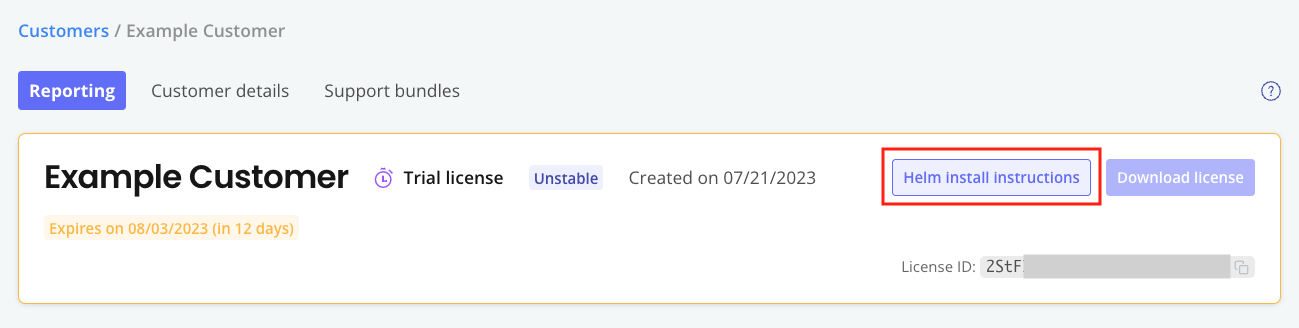 [View a larger image](/images/helm-install-button.png)
:::note
Helm charts marked with the `kots.io/installer-only: "true"` annotation will not appear in the Helm install instructions. These charts are deployed only when using Replicated installers (Embedded Cluster, KOTS, and kURL). For more information, see [HelmChart v2](/reference/custom-resource-helmchart-v2).
:::
1. In the **Helm install instructions** dialog, run the first command to log in to the Replicated registry:
```bash
helm registry login registry.replicated.com --username EMAIL_ADDRESS --password LICENSE_ID
```
Where:
* `EMAIL_ADDRESS` is the customer's email address
* `LICENSE_ID` is the ID of the customer's license
:::note
You can safely ignore the following warning message: `WARNING: Using --password via the CLI is insecure.` This message is displayed because using the `--password` flag stores the password in bash history. This login method is not insecure.
Alternatively, to avoid the warning message, you can click **(show advanced)** in the **Helm install instructions** dialog to display a login command that excludes the `--password` flag. With the advanced login command, you are prompted for the password after running the command.
:::
1. (Optional) Run the second and third commands to install the preflight plugin and run preflight checks. If no preflight checks are defined, these commands are not displayed. For more information about defining and running preflight checks, see [About Preflight Checks and Support Bundles](preflight-support-bundle-about).
1. Run the fourth command to install using Helm:
```bash
helm install RELEASE_NAME oci://registry.replicated.com/APP_SLUG/CHANNEL/CHART_NAME
```
Where:
* `RELEASE_NAME` is the name of the Helm release.
* `APP_SLUG` is the slug for the application. For information about how to find the application slug, see [Get the Application Slug](/vendor/vendor-portal-manage-app#slug).
* `CHANNEL` is the lowercased name of the channel where the release was promoted, such as `beta` or `unstable`. Channel is not required for releases promoted to the Stable channel.
* `CHART_NAME` is the name of the Helm chart.
:::note
To install the SDK with custom RBAC permissions, include the `--set` flag with the `helm install` command to override the value of the `replicated.serviceAccountName` field with a custom service account. For more information, see [Customizing RBAC for the SDK](/vendor/replicated-sdk-customizing#customize-rbac-for-the-sdk).
:::
1. (Optional) In the Vendor Portal, click **Customers**. You can see that the customer you used to install is marked as **Active** and the details about the application instance are listed under the customer name.
**Example**:

[View a larger version of this image](/images/sdk-customer-active-example.png)
[View a larger image](/images/helm-install-button.png)
:::note
Helm charts marked with the `kots.io/installer-only: "true"` annotation will not appear in the Helm install instructions. These charts are deployed only when using Replicated installers (Embedded Cluster, KOTS, and kURL). For more information, see [HelmChart v2](/reference/custom-resource-helmchart-v2).
:::
1. In the **Helm install instructions** dialog, run the first command to log in to the Replicated registry:
```bash
helm registry login registry.replicated.com --username EMAIL_ADDRESS --password LICENSE_ID
```
Where:
* `EMAIL_ADDRESS` is the customer's email address
* `LICENSE_ID` is the ID of the customer's license
:::note
You can safely ignore the following warning message: `WARNING: Using --password via the CLI is insecure.` This message is displayed because using the `--password` flag stores the password in bash history. This login method is not insecure.
Alternatively, to avoid the warning message, you can click **(show advanced)** in the **Helm install instructions** dialog to display a login command that excludes the `--password` flag. With the advanced login command, you are prompted for the password after running the command.
:::
1. (Optional) Run the second and third commands to install the preflight plugin and run preflight checks. If no preflight checks are defined, these commands are not displayed. For more information about defining and running preflight checks, see [About Preflight Checks and Support Bundles](preflight-support-bundle-about).
1. Run the fourth command to install using Helm:
```bash
helm install RELEASE_NAME oci://registry.replicated.com/APP_SLUG/CHANNEL/CHART_NAME
```
Where:
* `RELEASE_NAME` is the name of the Helm release.
* `APP_SLUG` is the slug for the application. For information about how to find the application slug, see [Get the Application Slug](/vendor/vendor-portal-manage-app#slug).
* `CHANNEL` is the lowercased name of the channel where the release was promoted, such as `beta` or `unstable`. Channel is not required for releases promoted to the Stable channel.
* `CHART_NAME` is the name of the Helm chart.
:::note
To install the SDK with custom RBAC permissions, include the `--set` flag with the `helm install` command to override the value of the `replicated.serviceAccountName` field with a custom service account. For more information, see [Customizing RBAC for the SDK](/vendor/replicated-sdk-customizing#customize-rbac-for-the-sdk).
:::
1. (Optional) In the Vendor Portal, click **Customers**. You can see that the customer you used to install is marked as **Active** and the details about the application instance are listed under the customer name.
**Example**:

[View a larger version of this image](/images/sdk-customer-active-example.png)