# Create and edit channels
This topic describes how to create and edit channels using the Replicated Vendor Portal. For more information about channels, see [About Channels and Releases](releases-about).
For information about creating channels with the Replicated CLI, see [channel create](/reference/replicated-cli-channel-create).
For information about creating and managing channels with the Vendor API v3, see the [channels](https://replicated-vendor-api.readme.io/reference/createchannel) section in the Vendor API v3 documentation.
## Create a channel
To create a channel:
1. From the Replicated [Vendor Portal](https://vendor.replicated.com), select **Channels** from the left menu.
1. Click **Create Channel**.
The Create a new channel dialog opens. For example:
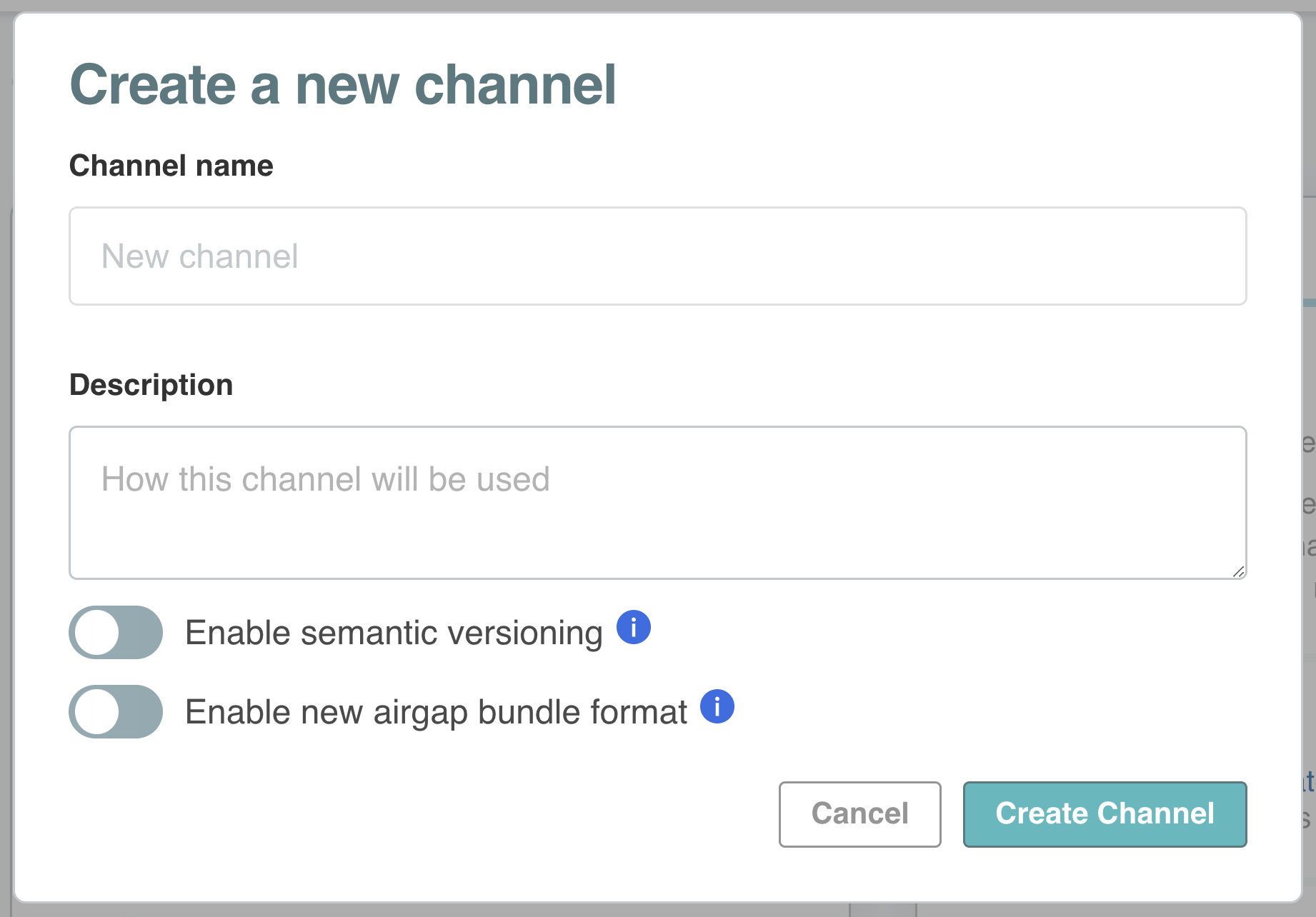 1. Enter a name and description for the channel.
1. (Recommended) Enable semantic versioning on the channel if it is not enabled by default by turning on **Enable semantic versioning**. For more information about semantic versioning and defaults, see [Semantic Versioning](releases-about#semantic-versioning).
1. (Recommended) Enable an air gap bundle format that supports image digests and deduplication of image layers, by turning on **Enable new air gap bundle format**. For more information, see [Use Image Tags and Digests](private-images-tags-digests).
1. Click **Create Channel**.
## Edit channel settings
To edit the settings of an existing channel:
1. In the Vendor Portal, select **Channels** from the left menu.
1. Click the gear icon on the top right of the channel that you want to modify.
The Channel settings dialog opens. For example:
1. Enter a name and description for the channel.
1. (Recommended) Enable semantic versioning on the channel if it is not enabled by default by turning on **Enable semantic versioning**. For more information about semantic versioning and defaults, see [Semantic Versioning](releases-about#semantic-versioning).
1. (Recommended) Enable an air gap bundle format that supports image digests and deduplication of image layers, by turning on **Enable new air gap bundle format**. For more information, see [Use Image Tags and Digests](private-images-tags-digests).
1. Click **Create Channel**.
## Edit channel settings
To edit the settings of an existing channel:
1. In the Vendor Portal, select **Channels** from the left menu.
1. Click the gear icon on the top right of the channel that you want to modify.
The Channel settings dialog opens. For example:
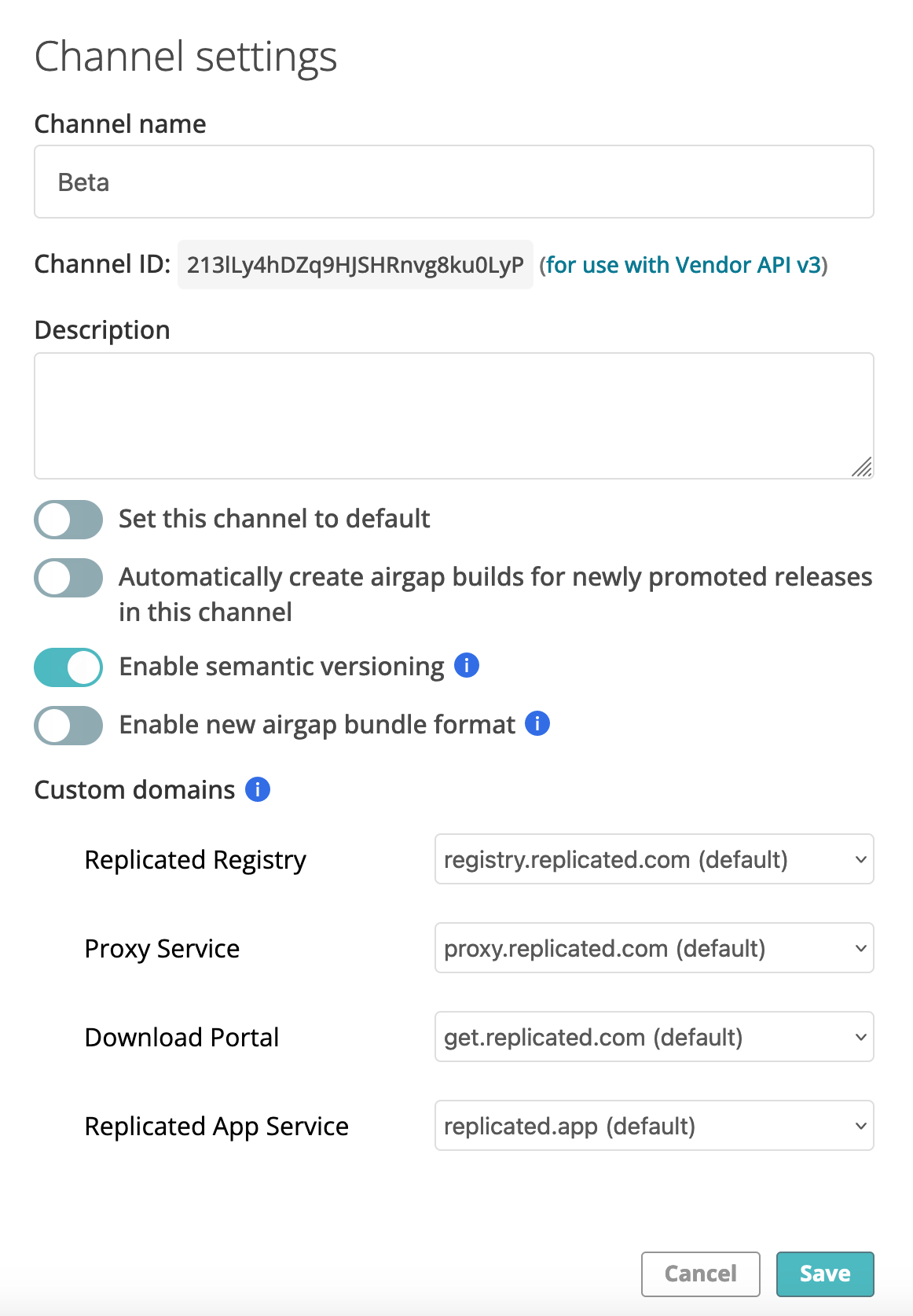 1. Edit the fields and click **Save**.
For more information about channel settings, see [Channel Settings](releases-about#channel-settings) in _About Channels and Releases_.
## Enable semantic versioning
You can enable and disable semantic versioning (SemVer) for releases on each channel. When you enable SemVer on a channel, the Vendor Portal checks all releases promoted to that channel to verify that the version label is valid SemVer.
You can enable SemVer on a channel that already has releases promoted to it that do not use semantic versioning. Any subsequently promoted releases must use semantic versioning. In this case, the channel will have releases with and without semantic version numbers. For more information, see [About Using Semantic Versioning](/vendor/releases-about#semantic-versioning) in _About Channels and Releases_.
:::note
If you enable SemVer for a channel and then promote releases to it, Replicated recommends that you do _not_ later disable SemVer for that channel.
:::
To enable semantic versioning on a channel:
1. In the Vendor Portal, go to **Channels** and click the **Edit channel settings** icon.
The **Channel settings** dialog opens. For example:
1. Enable the **Enable semantic versioning** toggle.
The next time that you promote a release to the channel, assign the release a semantic version number.
## Archive a channel
You can archive an existing channel to prevent any new releases from being promoted to the channel.
:::note
You cannot archive a channel if:
* There are customers assigned to the channel.
* The channel is set as the default channel.
Assign customers to a different channel and set a different channel as the default before archiving.
:::
To archive a channel with the Vendor Portal or the Replicated CLI:
* **Vendor portal**: In the Vendor Portal, go to the **Channels** page and click the trash can icon in the top right corner of the card for the channel that you want to archive.
* **Replicated CLI**:
1. Run the following command to find the ID for the channel that you want to archive:
```
replicated channel ls
```
The output of this command includes the ID and name for each channel, as well as information about the latest release version on the channels.
1. Run the following command to archive the channel:
```
replicated channel rm CHANNEL_ID
```
Replace `CHANNEL_ID` with the channel ID that you retrieved in the previous step.
For more information, see [channel rm](/reference/replicated-cli-channel-rm) in the Replicated CLI documentation.
1. Edit the fields and click **Save**.
For more information about channel settings, see [Channel Settings](releases-about#channel-settings) in _About Channels and Releases_.
## Enable semantic versioning
You can enable and disable semantic versioning (SemVer) for releases on each channel. When you enable SemVer on a channel, the Vendor Portal checks all releases promoted to that channel to verify that the version label is valid SemVer.
You can enable SemVer on a channel that already has releases promoted to it that do not use semantic versioning. Any subsequently promoted releases must use semantic versioning. In this case, the channel will have releases with and without semantic version numbers. For more information, see [About Using Semantic Versioning](/vendor/releases-about#semantic-versioning) in _About Channels and Releases_.
:::note
If you enable SemVer for a channel and then promote releases to it, Replicated recommends that you do _not_ later disable SemVer for that channel.
:::
To enable semantic versioning on a channel:
1. In the Vendor Portal, go to **Channels** and click the **Edit channel settings** icon.
The **Channel settings** dialog opens. For example:
1. Enable the **Enable semantic versioning** toggle.
The next time that you promote a release to the channel, assign the release a semantic version number.
## Archive a channel
You can archive an existing channel to prevent any new releases from being promoted to the channel.
:::note
You cannot archive a channel if:
* There are customers assigned to the channel.
* The channel is set as the default channel.
Assign customers to a different channel and set a different channel as the default before archiving.
:::
To archive a channel with the Vendor Portal or the Replicated CLI:
* **Vendor portal**: In the Vendor Portal, go to the **Channels** page and click the trash can icon in the top right corner of the card for the channel that you want to archive.
* **Replicated CLI**:
1. Run the following command to find the ID for the channel that you want to archive:
```
replicated channel ls
```
The output of this command includes the ID and name for each channel, as well as information about the latest release version on the channels.
1. Run the following command to archive the channel:
```
replicated channel rm CHANNEL_ID
```
Replace `CHANNEL_ID` with the channel ID that you retrieved in the previous step.
For more information, see [channel rm](/reference/replicated-cli-channel-rm) in the Replicated CLI documentation.