# Access a customer's Download Portal
This topic describes how to access installation instructions and download installation assets (such as customer license files and air gap bundles) from the Replicated Download Portal.
For information about downloading air gap bundles and licenses with the Vendor API v3, see the following pages in the Vendor API v3 documentation:
* [Download a customer license file as YAML](https://replicated-vendor-api.readme.io/reference/downloadlicense)
* [Trigger airgap build for a channel's release](https://replicated-vendor-api.readme.io/reference/channelreleaseairgapbuild)
* [Get airgap bundle download URL for the active release on the channel](https://replicated-vendor-api.readme.io/reference/channelreleaseairgapbundleurl)
## Overview
The Replicated Download Portal can be used to share license files, air gap bundles, and other assets with customers. From the Download Portal, customers can also view instructions for how to install a release with Replicated Embedded Cluster or the Helm CLI.
A unique Download Portal link is available for each customer. The Download Portal uses information from the customer's license to make the relevant assets and installation instructions available.
## Limitation
Sessions in the Download Portal are valid for 72 hours. After the session expires, your customer must log in again. The Download Portal session length is not configurable.
## Access the Download Portal
To access the Download Portal for a customer:
1. In the [Vendor Portal](https://vendor.replicated.com), on the **Customers** page, click on the name of the customer.
1. On the **Manage customer** tab, under **Install types**, enable the installation types that are supported for the customer. This determines the installation instructions and assets that are available for the customer in the Download Portal. For more information about install types, see [Manage Install Types for a License](/vendor/licenses-install-types).
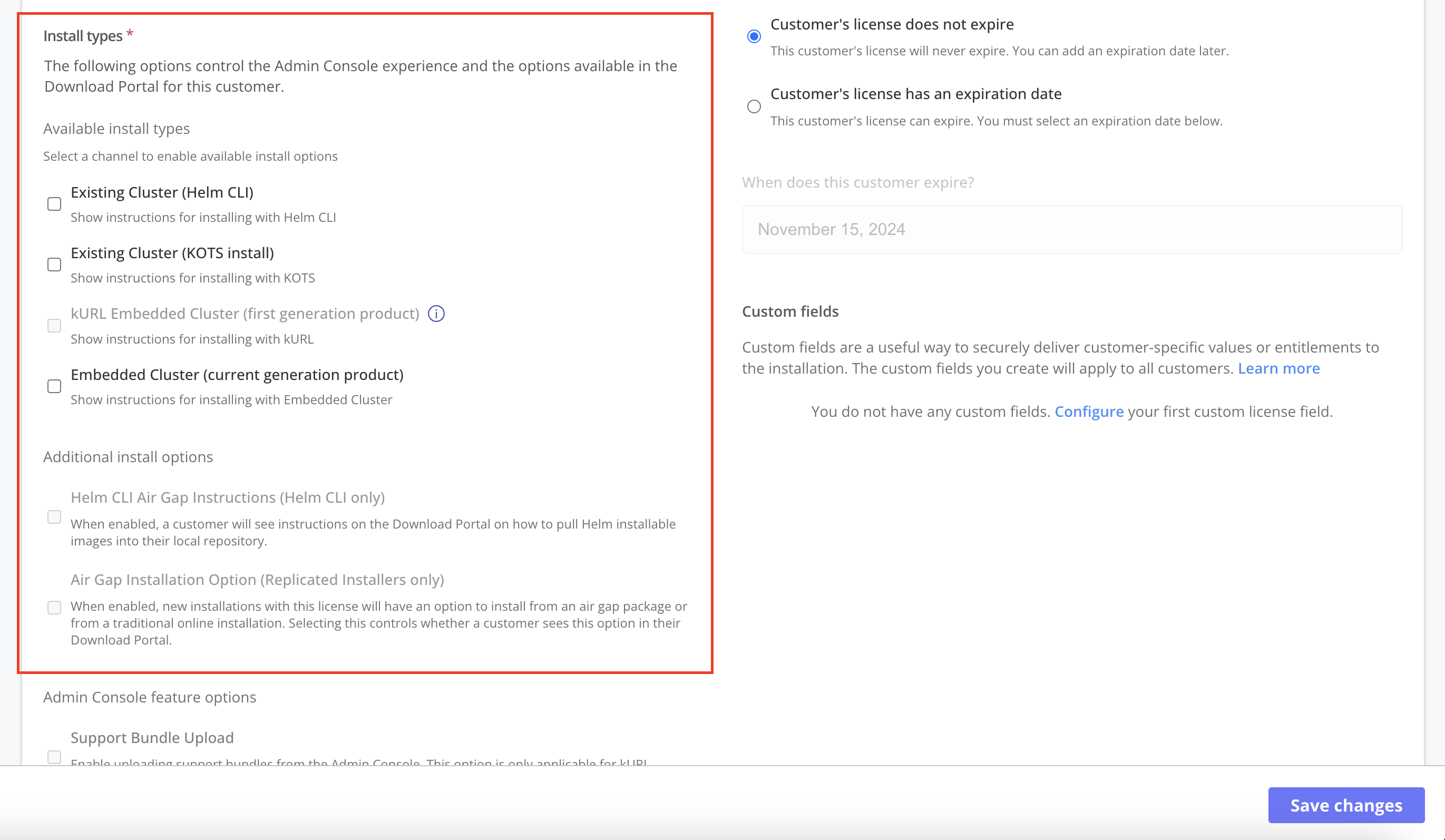 [View a larger version of this image](/images/license-install-types.png)
1. (Optional) Under **Advanced install options**, enable the air gap installation options that are supported for the customer:
* Enable **Helm CLI Air Gap Instructions (Helm CLI only)** to display Helm air gap installation instructions in the Download Portal for the customer.
* Enable **Air Gap Installation Option (Replicated Installers only)** to allow the customer to install from an air gap bundle using one of the Replicated installers (KOTS, kURL, Embedded Cluster).
[View a larger version of this image](/images/license-install-types.png)
1. (Optional) Under **Advanced install options**, enable the air gap installation options that are supported for the customer:
* Enable **Helm CLI Air Gap Instructions (Helm CLI only)** to display Helm air gap installation instructions in the Download Portal for the customer.
* Enable **Air Gap Installation Option (Replicated Installers only)** to allow the customer to install from an air gap bundle using one of the Replicated installers (KOTS, kURL, Embedded Cluster).
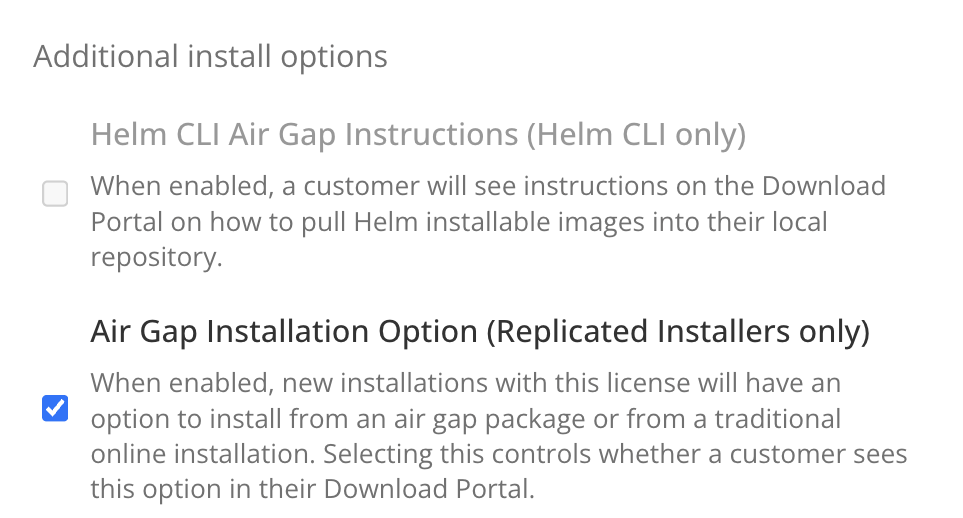 [View a larger version of this image](/images/airgap-download-enabled.png)
1. Save your changes.
1. On the **Reporting** tab, in the **Download portal** section, click **Manage customer password**.
[View a larger version of this image](/images/airgap-download-enabled.png)
1. Save your changes.
1. On the **Reporting** tab, in the **Download portal** section, click **Manage customer password**.
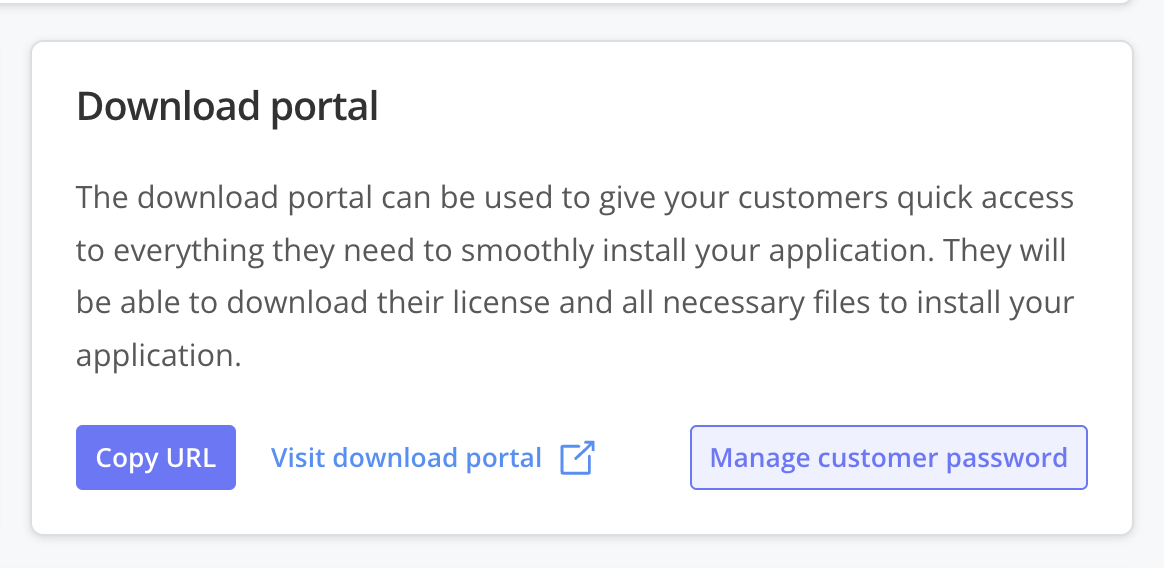 [View a larger version of this image](/images/download-portal-link.png)
1. In the pop-up window, enter a password or click **Generate**.
[View a larger version of this image](/images/download-portal-link.png)
1. In the pop-up window, enter a password or click **Generate**.
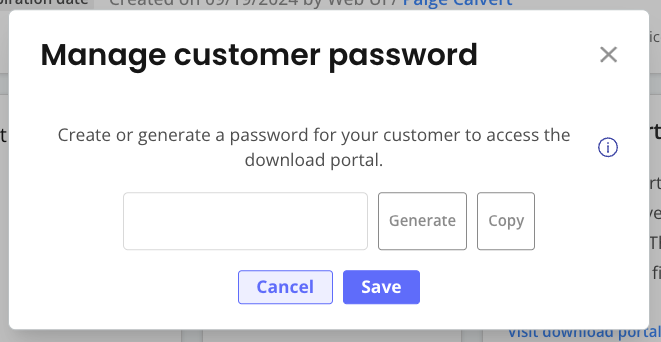 [View a larger version of this image](/images/download-portal-password-popup.png)
1. Click **Copy** to copy the password to your clipboard.
After the password is saved, it cannot be retrieved again. If you lose the password, you can generate a new one.
1. Click **Save** to set the password.
1. Click **Visit download portal** to log in to the Download Portal
and preview your customer's experience.
:::note
By default, the Download Portal uses the domain `get.replicated.com`. You can optionally use a custom domain for the Download Portal. For more information, see [Use Custom Domains](/vendor/custom-domains-using).
:::
1. In the Download Portal, on the left side of the screen, select the installation type. The options displayed vary depending on the **Install types** and **Advanced install options** that you enabled in the customer's license.
The following is an example of the Download Portal with options for Helm and Embedded Cluster installations:

[View a larger version of this image](/images/download-portal-helm-ec.png)
1. To share installation instructions and assets with a customer, send the customer their unique link and password for the Download Portal.
[View a larger version of this image](/images/download-portal-password-popup.png)
1. Click **Copy** to copy the password to your clipboard.
After the password is saved, it cannot be retrieved again. If you lose the password, you can generate a new one.
1. Click **Save** to set the password.
1. Click **Visit download portal** to log in to the Download Portal
and preview your customer's experience.
:::note
By default, the Download Portal uses the domain `get.replicated.com`. You can optionally use a custom domain for the Download Portal. For more information, see [Use Custom Domains](/vendor/custom-domains-using).
:::
1. In the Download Portal, on the left side of the screen, select the installation type. The options displayed vary depending on the **Install types** and **Advanced install options** that you enabled in the customer's license.
The following is an example of the Download Portal with options for Helm and Embedded Cluster installations:

[View a larger version of this image](/images/download-portal-helm-ec.png)
1. To share installation instructions and assets with a customer, send the customer their unique link and password for the Download Portal.