View the command for installing with Replicated KOTS in existing clusters.
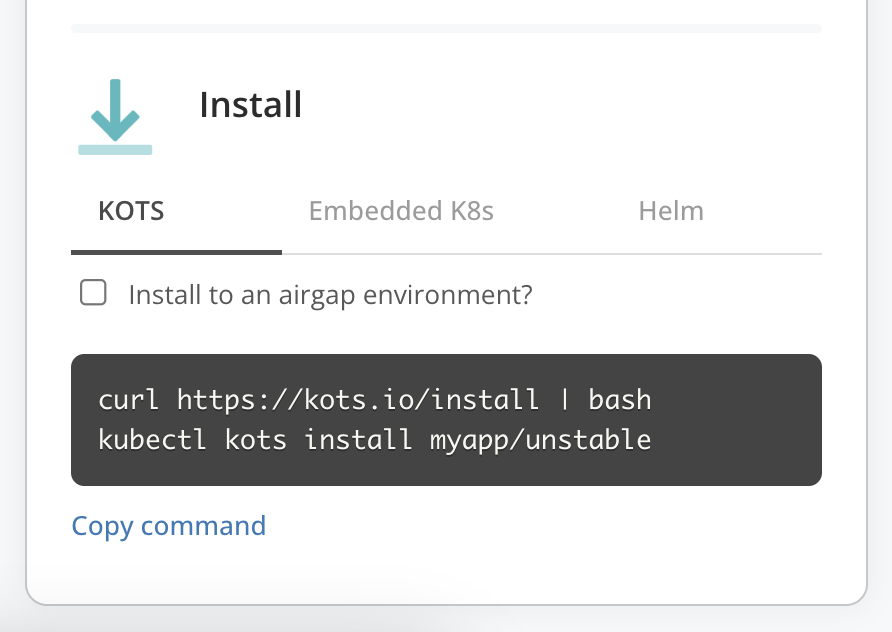 [View a larger version of this image](/images/channel-card-install-kots.png)
View the commands for installing with Replicated Embedded Cluster or Replicated kURL on VMs or bare metal servers.
In the dropdown, choose **kURL** or **Embedded Cluster** to view the command for the target installer:
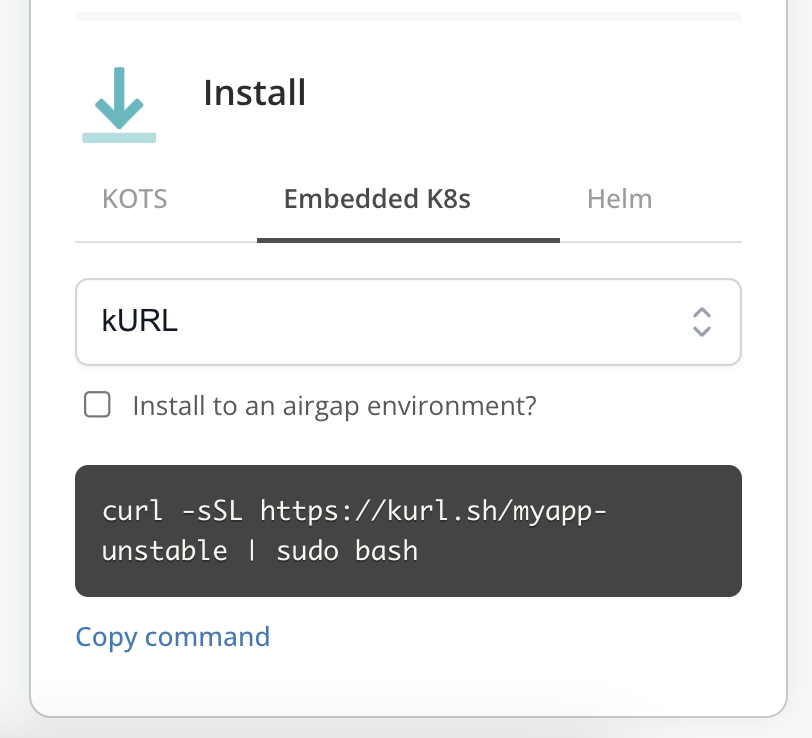 [View a larger version of this image](/images/channel-card-install-kurl.png)
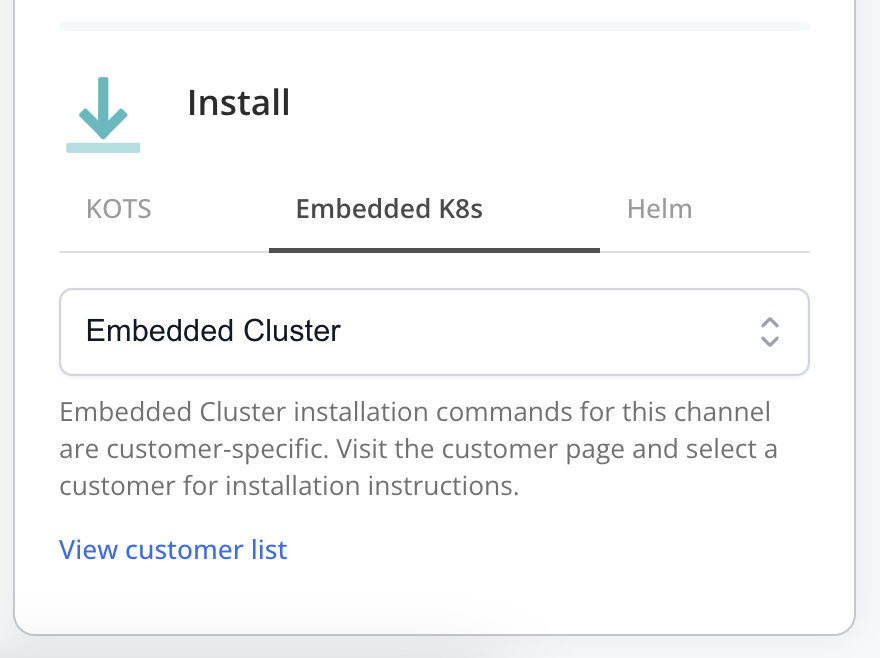 [View a larger version of this image](/images/channel-card-install-ec.png)
:::note
The Embedded Cluster installation instructions are customer-specific. Click **View customer list** to navigate to the page for the target customer. For more information, see [Get Customer-Specific Installation Instructions for Helm or Embedded Cluster](#customer-specific) below.
:::
[View a larger version of this image](/images/channel-card-install-ec.png)
:::note
The Embedded Cluster installation instructions are customer-specific. Click **View customer list** to navigate to the page for the target customer. For more information, see [Get Customer-Specific Installation Instructions for Helm or Embedded Cluster](#customer-specific) below.
:::
View the command for installing with the Helm CLI in an existing cluster.
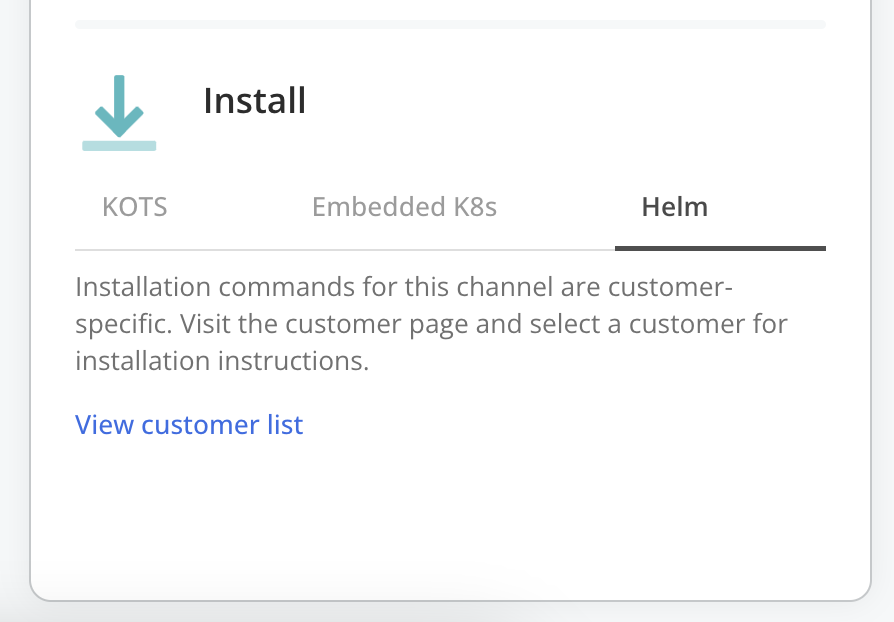 [View a larger version of this image](/images/channel-card-install-helm.png)
:::note
The Helm installation instructions are customer-specific. Click **View customer list** to navigate to the page for the target customer. For more information, see [Get Customer-Specific Installation Instructions for Helm or Embedded Cluster](#customer-specific) below.
:::
[View a larger version of this image](/images/channel-card-install-helm.png)
:::note
The Helm installation instructions are customer-specific. Click **View customer list** to navigate to the page for the target customer. For more information, see [Get Customer-Specific Installation Instructions for Helm or Embedded Cluster](#customer-specific) below.
:::
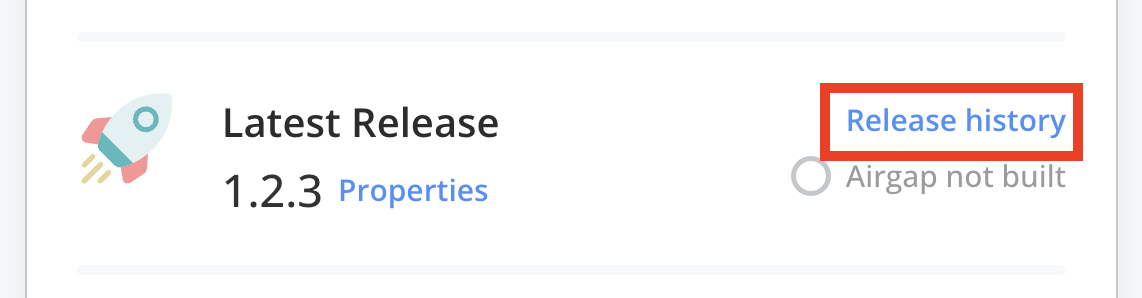 [View a larger version of this image](/images/release-history-link.png)
1. For the target release version, open the dot menu and click **Install Commands**.
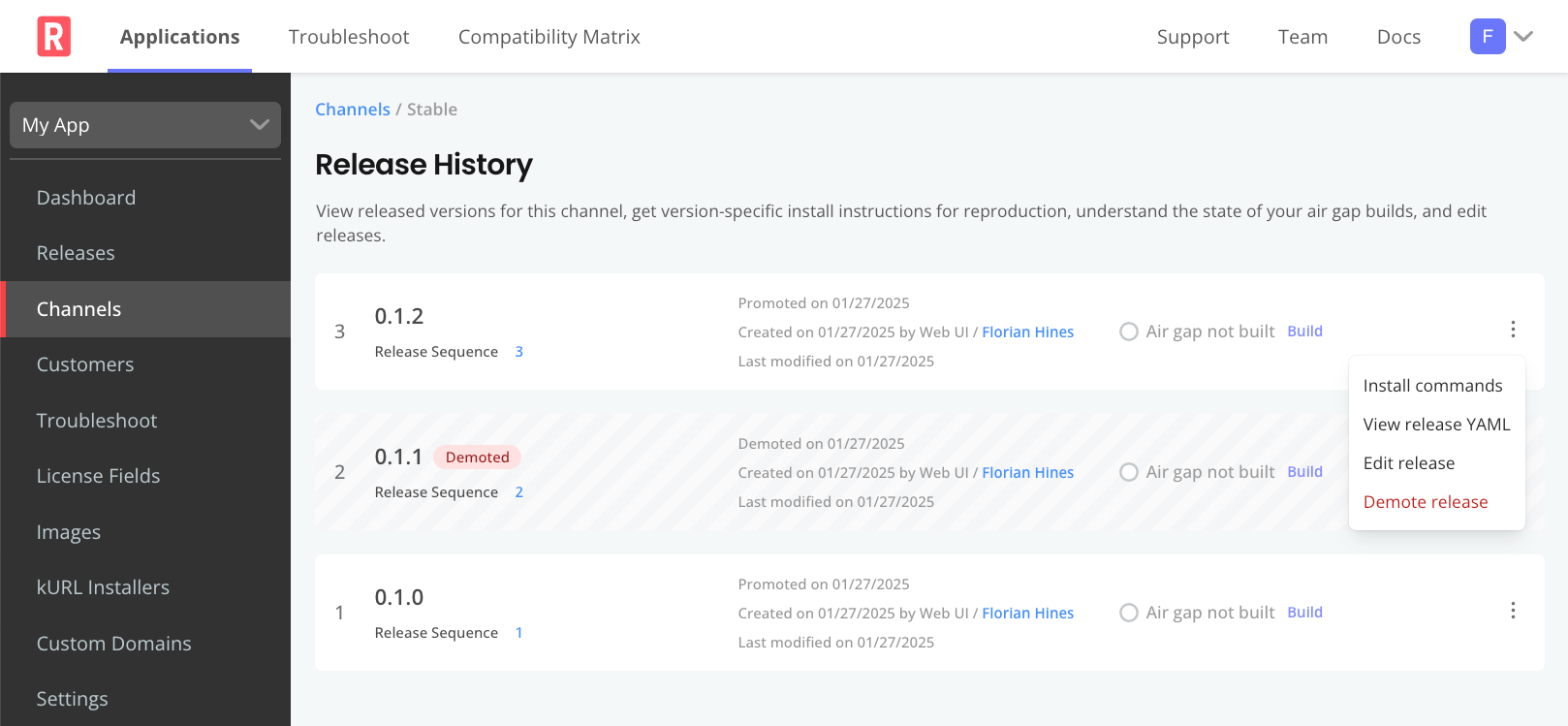
[View a larger version of this image](/images/channels-release-history.png)
1. In the **Install Commands** dialog, click the tab for the type of installation command that you want to view:
[View a larger version of this image](/images/release-history-link.png)
1. For the target release version, open the dot menu and click **Install Commands**.

[View a larger version of this image](/images/channels-release-history.png)
1. In the **Install Commands** dialog, click the tab for the type of installation command that you want to view:
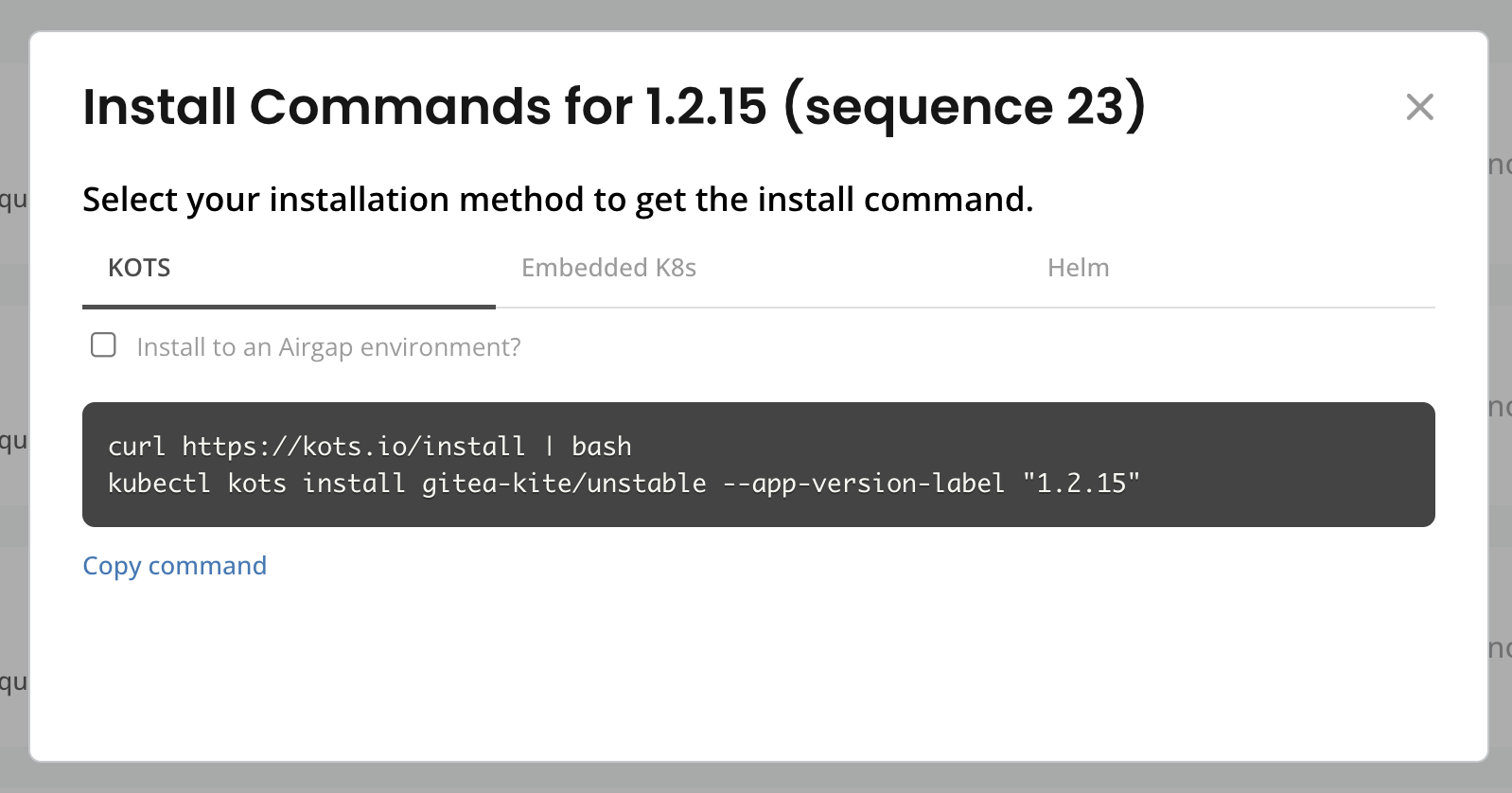 [View a larger version of this image](/images/release-history-install-kots.png)
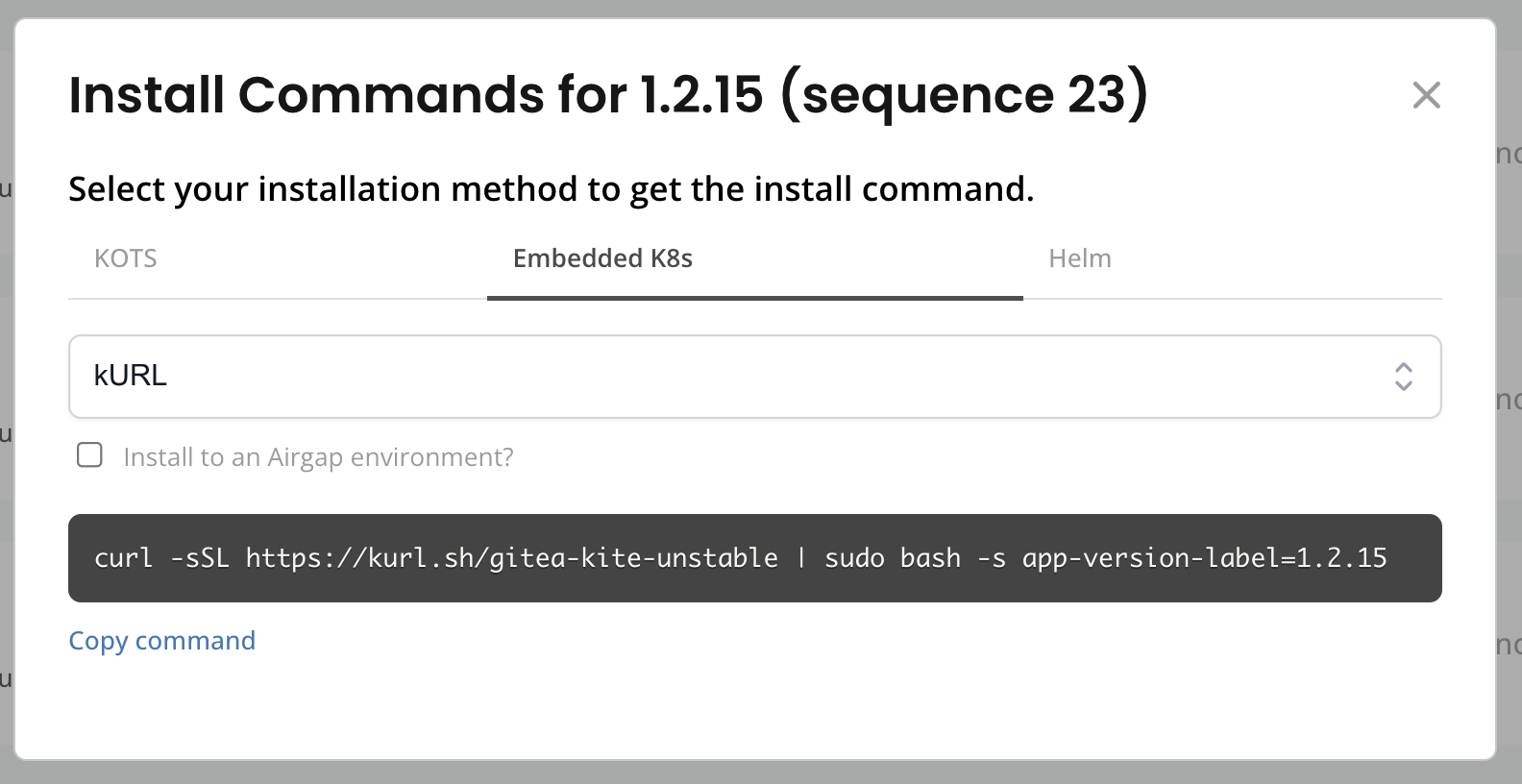 [View a larger version of this image](/images/release-history-install-kurl.png)
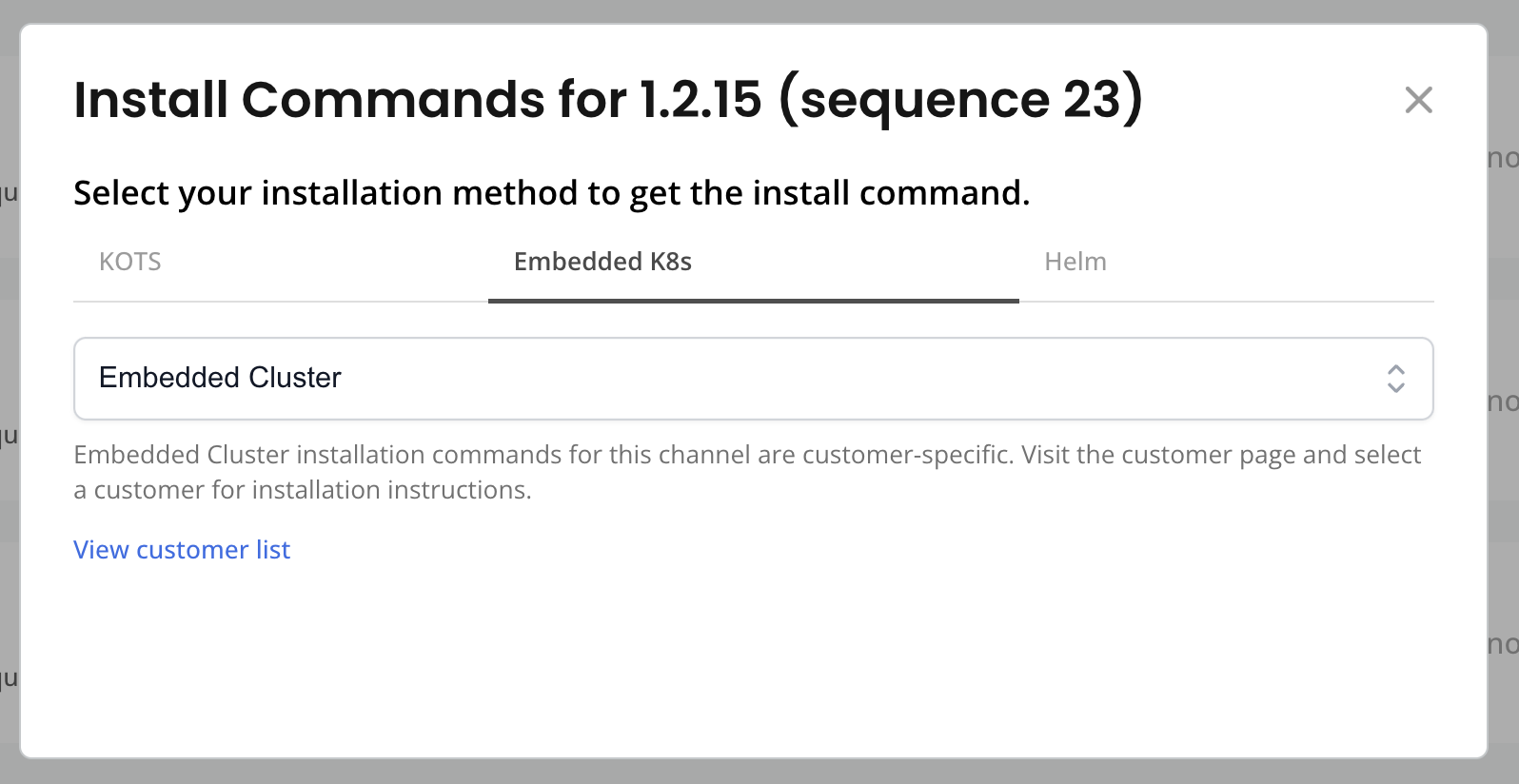 [View a larger version of this image](/images/release-history-install-embedded-cluster.png)
:::note
The Embedded Cluster installation instructions are customer-specific. Click **View customer list** to navigate to the page for the target customer. For more information, see [Get Customer-Specific Installation Instructions for Helm or Embedded Cluster](#customer-specific) below.
:::
[View a larger version of this image](/images/release-history-install-embedded-cluster.png)
:::note
The Embedded Cluster installation instructions are customer-specific. Click **View customer list** to navigate to the page for the target customer. For more information, see [Get Customer-Specific Installation Instructions for Helm or Embedded Cluster](#customer-specific) below.
:::
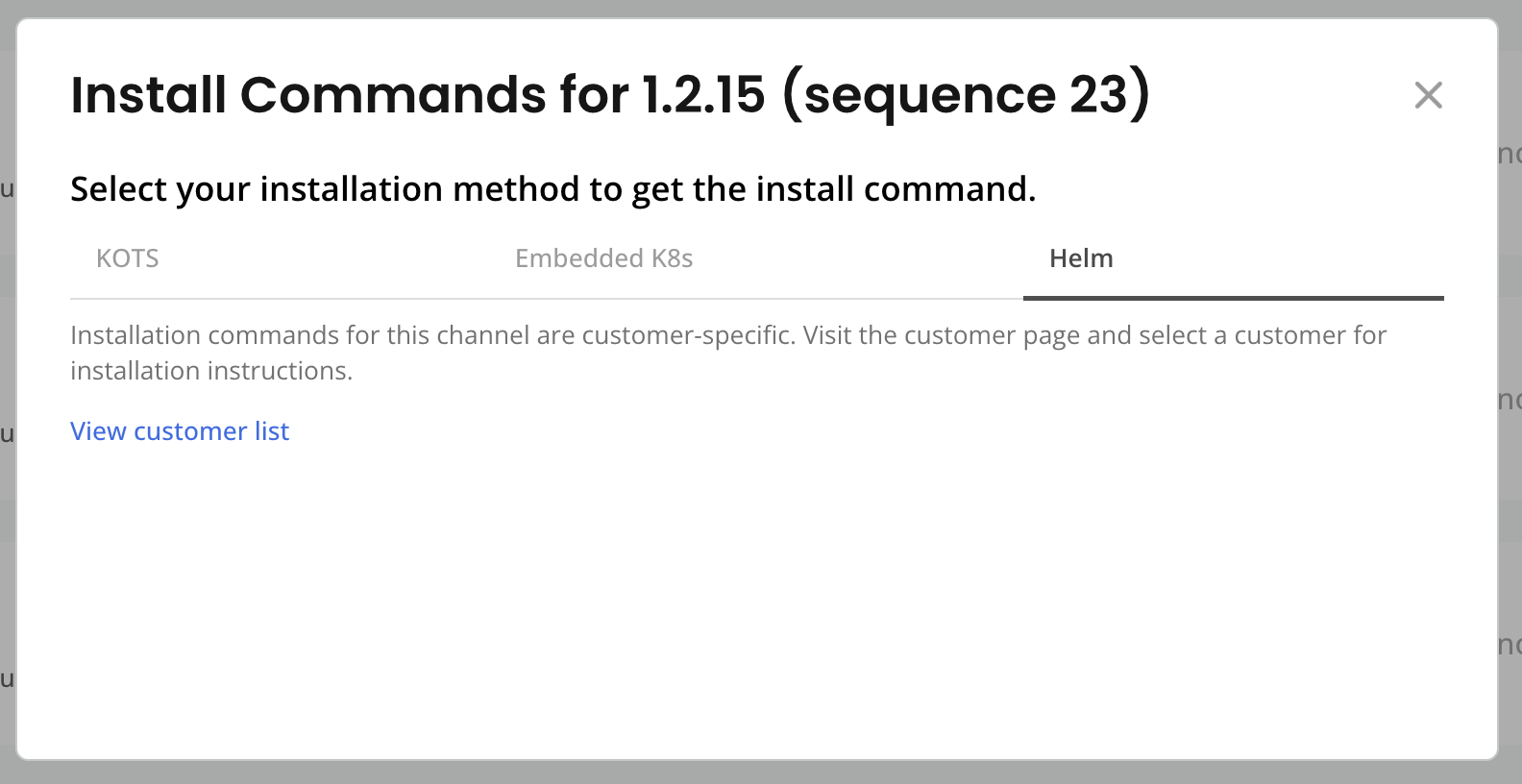 [View a larger version of this image](/images/release-history-install-helm.png)
:::note
The Helm installation instructions are customer-specific. Click **View customer list** to navigate to the page for the target customer. For more information, see [Get Customer-Specific Installation Instructions for Helm or Embedded Cluster](#customer-specific) below.
:::
[View a larger version of this image](/images/release-history-install-helm.png)
:::note
The Helm installation instructions are customer-specific. Click **View customer list** to navigate to the page for the target customer. For more information, see [Get Customer-Specific Installation Instructions for Helm or Embedded Cluster](#customer-specific) below.
:::
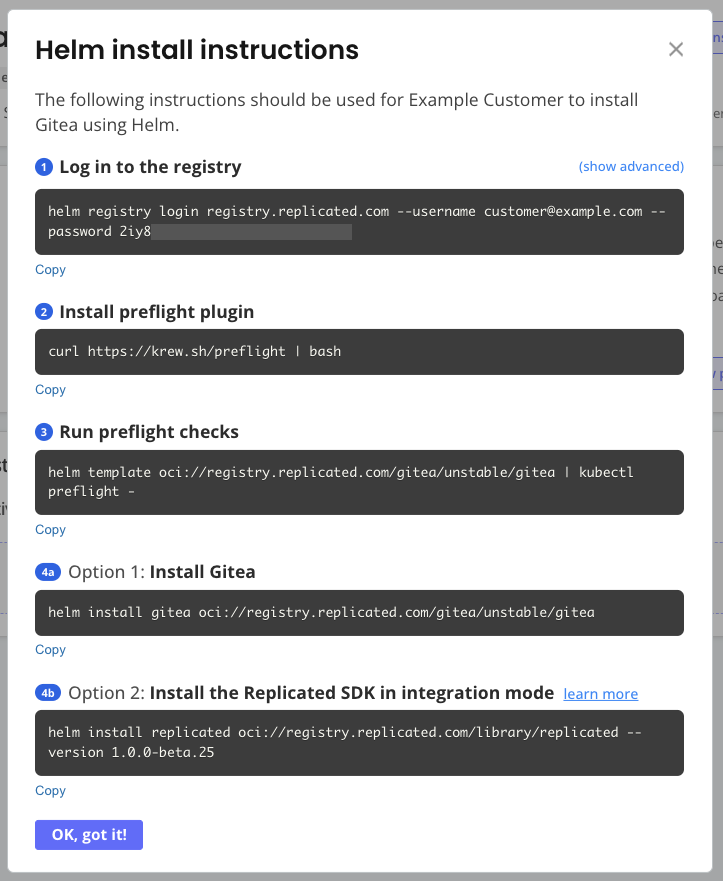 [View a larger version of this image](/images/helm-install-instructions-dialog.png)
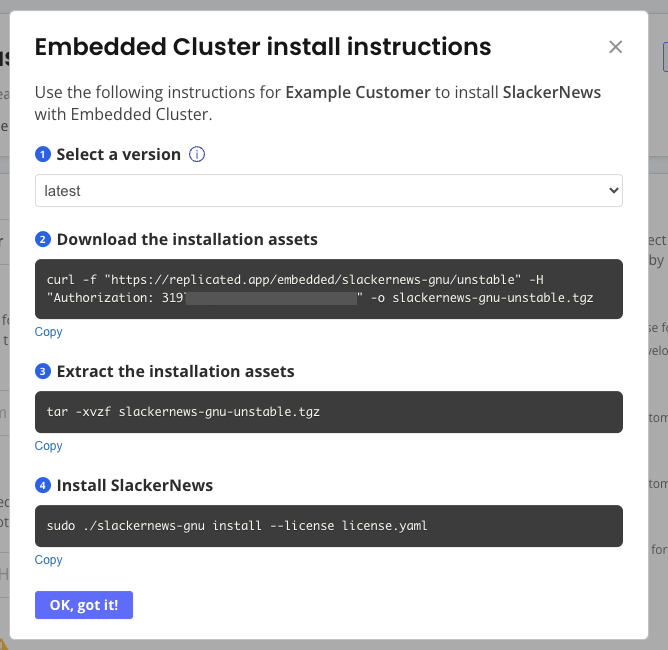 [View a larger version of this image](/images/embedded-cluster-install-dialog-latest.png)