# Inspect support bundles
You can use the Vendor Portal to get a visual analysis of customer support bundles and use the file inspector to drill down into the details and logs files. Use this information to get insights and help troubleshoot your customer issues.
To inspect a support bundle:
1. In the Vendor Portal, go to the [**Troubleshoot**](https://vendor.replicated.com/troubleshoot) page and click **Add support bundle > Upload a support bundle**.
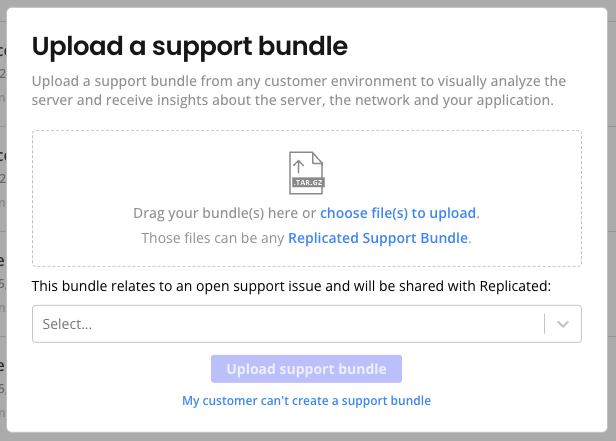
1. In the **Upload a support bundle** dialog, drag and drop or use the file selector to upload a support bundle file to the Vendor Portal.
 [View a larger version of this image](/images/support-bundle-analyze.png)
1. (Optional) If the support bundle relates to an open support issue, select the support issue from the dropdown to share the bundle with Replicated.
1. Click **Upload support bundle**.
The **Support bundle analysis** page opens. The **Support bundle analysis** page includes information about the bundle, any available instance reporting data from the point in time when the bundle was collected, an analysis overview that can be filtered to show errors and warnings, and a file inspector.

[View a larger version of this image](/images/support-bundle-analysis-overview.png)
1. On the **File inspector** tab, select any files from the directory tree to inspect the details of any files included in the support bundle, such as log files.
1. (Optional) Click **Download bundle** to download the bundle. This can be helpful if you want to access the bundle from another system or if other team members want to access the bundle and use other tools to examine the files.
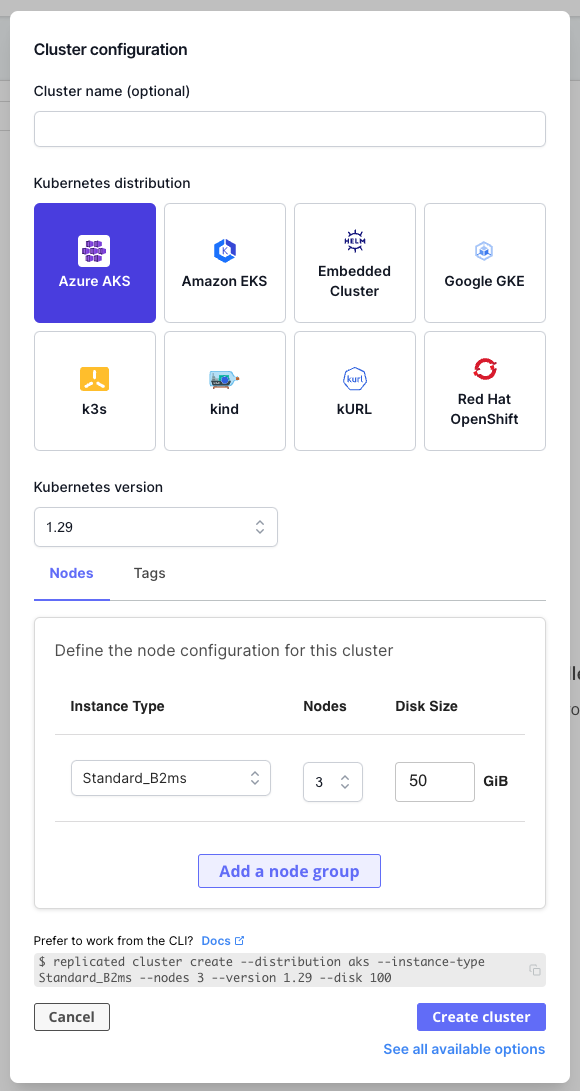
1. (Optional) Navigate back to the [**Troubleshoot**](https://vendor.replicated.com/troubleshoot) page and click **Create infrastructure** to provision a customer-representative environment for troubleshooting with Replicated Compatibility Matrix. For more information about creating environments with Compatibility Matrix, see [Create and Manage Environments with CMX](/vendor/testing-how-to).
[View a larger version of this image](/images/support-bundle-analyze.png)
1. (Optional) If the support bundle relates to an open support issue, select the support issue from the dropdown to share the bundle with Replicated.
1. Click **Upload support bundle**.
The **Support bundle analysis** page opens. The **Support bundle analysis** page includes information about the bundle, any available instance reporting data from the point in time when the bundle was collected, an analysis overview that can be filtered to show errors and warnings, and a file inspector.

[View a larger version of this image](/images/support-bundle-analysis-overview.png)
1. On the **File inspector** tab, select any files from the directory tree to inspect the details of any files included in the support bundle, such as log files.
1. (Optional) Click **Download bundle** to download the bundle. This can be helpful if you want to access the bundle from another system or if other team members want to access the bundle and use other tools to examine the files.
1. (Optional) Navigate back to the [**Troubleshoot**](https://vendor.replicated.com/troubleshoot) page and click **Create infrastructure** to provision a customer-representative environment for troubleshooting with Replicated Compatibility Matrix. For more information about creating environments with Compatibility Matrix, see [Create and Manage Environments with CMX](/vendor/testing-how-to).
 [View a larger version of this image](/images/cmx-cluster-configuration.png)
1. If you cannot resolve your customer's issue and need to submit a support request, go to the [**Support**](https://vendor.replicated.com/) page and click **Open a support request**. For more information, see [Submit a Support Request](support-submit-request).
:::note
The **Share with Replicated** button on the support bundle analysis page does _not_ open a support request. You might be directed to use the **Share with Replicated** option when you are already interacting with a Replicated team member.
:::

[View larger version of this image](/images/support.png)
[View a larger version of this image](/images/cmx-cluster-configuration.png)
1. If you cannot resolve your customer's issue and need to submit a support request, go to the [**Support**](https://vendor.replicated.com/) page and click **Open a support request**. For more information, see [Submit a Support Request](support-submit-request).
:::note
The **Share with Replicated** button on the support bundle analysis page does _not_ open a support request. You might be directed to use the **Share with Replicated** option when you are already interacting with a Replicated team member.
:::

[View larger version of this image](/images/support.png)