# Create and manage environments with CMX
This topic describes how to use Replicated Compatibility Matrix (CMX) to create and manage clusters and VMs.
This topic includes information about creating and managing environments with CMX using the Replicated Vendor Portal or the Replicated CLI. For information about creating and managing clusters with the Vendor API v3, see the [clusters](https://replicated-vendor-api.readme.io/reference/listclusterusage) section in the Vendor API v3 documentation.
## Prerequisites
* Create an account in the Replicated Vendor Portal. See [Create a Vendor Account](/vendor/vendor-portal-creating-account).
* Install the Replicated CLI and then authorize the CLI using your vendor account. See [Install the Replicated CLI](/reference/replicated-cli-installing).
* If you have a contract, you can purchase more credits by going to [**Compatibility Matrix > Buy additional credits**](https://vendor.replicated.com/compatibility-matrix). Otherwise, you can request credits by going to [**Compatibility Matrix > Request more credits**](https://vendor.replicated.com/compatibility-matrix) in the Vendor Portal. For more information, see [Billing and Credits](/vendor/testing-about#billing-and-credits).
* Existing accounts must accept the TOS for the trial on the [**Compatibility Matrix**](https://vendor.replicated.com/compatibility-matrix) page in the Replicated Vendor Portal.
## Create environments
For information about how to create environments with the CLI, see [replicated cluster create](/reference/replicated-cli-cluster-create) and [replicated vm create](/reference/replicated-cli-vm-create).
To create an environment with CMX from the Vendor Portal:
1. In the Vendor Portal, go to [**Compatibility Matrix**](https://vendor.replicated.com/compatibility-matrix/create-cluster).
1. Click **Create** and choose **Create Kubernetes cluster** or **Create VM**:
* **Create Kubernetes cluster:**
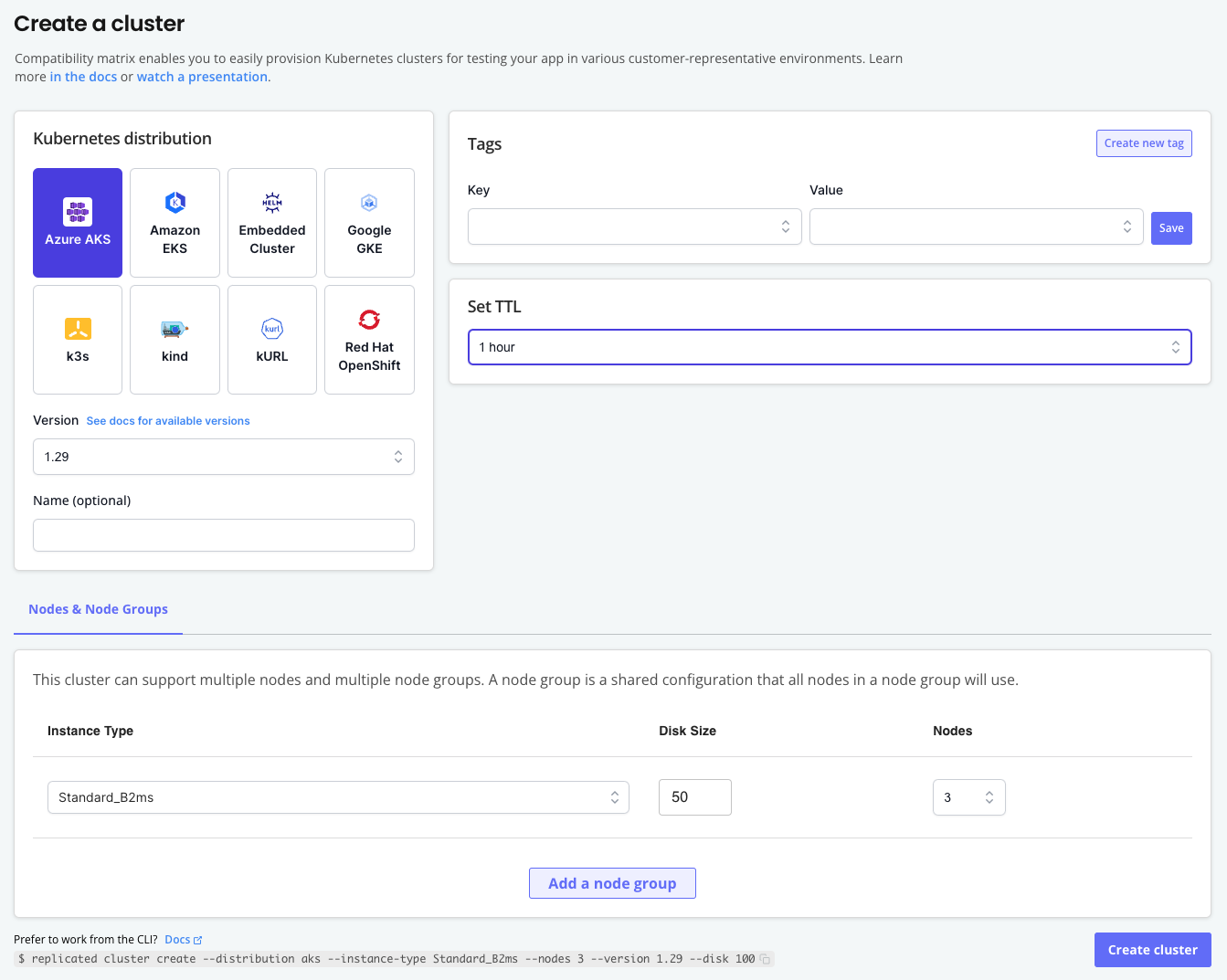
1. On the **Create a cluster** page, choose the Kubernetes distribution and version.
1. (Optional) Add a name for the cluster, add tags, and adjust the Time to Live (TTL).
1. (Optional) For **Nodes & Nodes Groups**, add and configure additional nodes and node groups for the cluster.
The following is an example of the **Create a cluster** page:
 [View a larger version of this image](/images/create-a-cluster.png)
* **Create VM:**
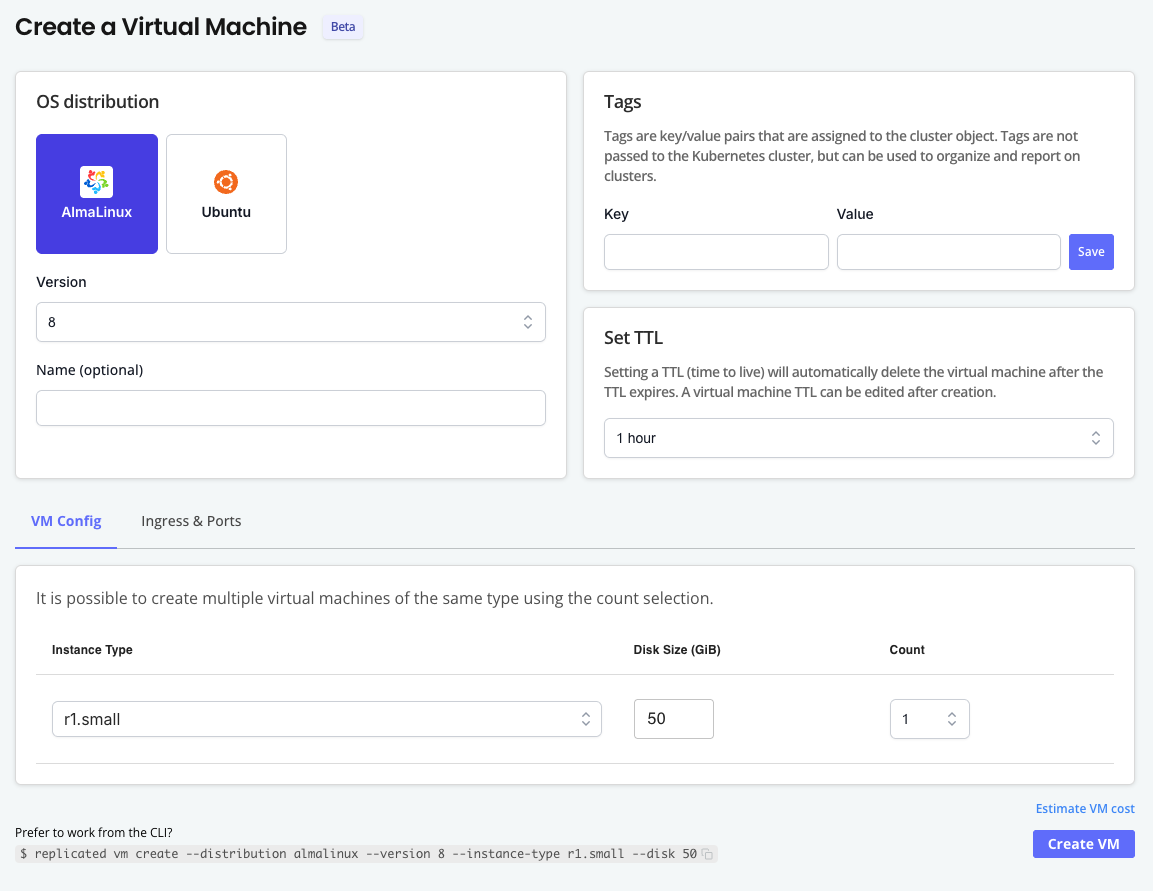
1. On the **Create a Virtual Machine** page, choose the OS distribution and version.
1. (Optional) Add a name for the VM, add tags, and adjust the Time to Live (TTL).
1. (Optional) For **VM Config**, choose the instance type and disk size. You can also create multiple VMs of the same type by increasing the **Count**.
:::note
You can create TLS certs and DNS records in the **Ingress & Ports** tab _after_ the VM has been created. See [Expose Ports](/vendor/testing-ingress#expose-ports).
:::
The following is an example of the **Create a Virtual Machine** page:
[View a larger version of this image](/images/create-a-cluster.png)
* **Create VM:**
1. On the **Create a Virtual Machine** page, choose the OS distribution and version.
1. (Optional) Add a name for the VM, add tags, and adjust the Time to Live (TTL).
1. (Optional) For **VM Config**, choose the instance type and disk size. You can also create multiple VMs of the same type by increasing the **Count**.
:::note
You can create TLS certs and DNS records in the **Ingress & Ports** tab _after_ the VM has been created. See [Expose Ports](/vendor/testing-ingress#expose-ports).
:::
The following is an example of the **Create a Virtual Machine** page:
 [View a larger version of this image](/images/compatibility-matrix-create-vm.png)
1. Click **Create cluster** or **Create VM**.
The environment is displayed in the list on the Compatibility Matrix **Overview** page with a status of Assigned. When the environment is ready, the status is changed to Running.
## Create air-gapped environments (Beta) {#air-gap}
:::note
Using the `airgap` network policy to simulate an air-gapped environment is supported only for VMs and [VM-based clusters](/vendor/testing-supported-clusters#vm-clusters). Clusters that use cloud-based distributions do not support the `airgap` network policy.
:::
VMs and [VM-based clusters](/vendor/testing-supported-clusters#vm-clusters) created with CMX can use one of the following network policies:
| Network Policy | Description |
| :---- | :---- |
| `open` | No restrictions on network traffic. |
| `airgap` | Restrict all network traffic. |
By default, all VMs and VM-based clusters are created with an `open` network policy. You can change the network policy to `airgap` to block outbound network requests. This is useful for simulating an air-gapped environment with no outbound internet access so that you can test how your application performs.
Network policies are configured at the network level and apply to all VMs and environments connected to the network.
You can also use CMX to generate reports that track and summarize network activity on CMX networks. For more information, see [Collect and View Network Reports](/vendor/testing-network-policy).
### VM-based cluster
To create an air-gapped cluster:
1. Create a cluster:
```bash
replicated cluster create --distribution VM_BASED_DISTRIBUTION
```
Where `VM_BASED_DISTRIBUTION` is the target VM-based cluster distribution. For a list of supported distributions, see [VM Clusters](/vendor/testing-supported-clusters#vm-clusters).
1. Watch until the cluster status is `running`:
```bash
replicated cluster ls --watch
```
1. Access the cluster in a shell:
```
replicated cluster shell CLUSTER_ID
```
Where `CLUSTER_ID` is the ID of the cluster that you created from the output of the `cluster ls` command.
1. Change the network policy to `airgap`:
```bash
replicated network update NETWORK_ID --policy airgap
```
Where `NETWORK_ID` is the ID of the network from the output of the `cluster ls` command.
1. Verify that the cluster's policy is `airgap` and the status is `running`:
```bash
replicated cluster ls
```
```bash
ID NAME STATUS CREATED EXPIRES POLICY HAS REPORT
bdeb3515 gifted_antonelli running 2025-01-28 18:45 PST 2025-01-28 19:45 PST airgap off
```
1. (Optional) Enable network reporting to track network activity. See [Collect and View Network Reports](/vendor/testing-network-policy).
### VM
To create an air-gapped VM:
1. Create a VM:
```bash
replicated vm create --distribution ubuntu
```
1. Wait until the VM status is running:
```bash
replicated vm ls
```
1. SSH onto the VM:
```bash
ssh VM_ID@replicatedvm.com
```
Where `VM_ID` is the ID of the VM from the output of the `vm ls` command.
For more information and additional options, see [Connect to CMX VMs (SSH and File Transfer)](/vendor/testing-vm-create).
1. Set the network policy to `airgap`:
```bash
replicated network update NETWORK_ID --policy airgap
```
Where `NETWORK_ID` is the ID of the network from the output of the `vm ls` command.
**Example:**
```bash
replicated network update 85eb50a8 --policy airgap
```
```bash
ID NAME STATUS CREATED EXPIRES POLICY HAS REPORT
85eb50a8 silly_rosalind updating 2025-01-28 16:16 PST 2025-01-28 17:18 PST airgap off
```
1. (Optional) Enable network reporting to track network activity. See [Collect and View Network Reports](/vendor/testing-network-policy).
## Access environments
After a CMX cluster or VM is running, you can access the environment using the `replicated cluster shell` or `ssh` command that is available in the Compatibility Matrix UI.
* **To access a cluster with kubectl:**
```bash
replicated cluster shell CLUSTER_ID
```
Where `CLUSTER_ID` is the ID of the running cluster.
* **To SSH into a VM:**
1. If you have not done so already, set up SSH access using a public/private key pair. See [Prerequisite: Set Up SSH](/vendor/testing-vm-create#set-up-ssh) in _Connect to VMs (SSH and File Transfer)_.
1. Run the following command:
```bash
ssh VMID@replicatedvm.com
```
Where `VMID` is the ID of the running VM.
1. Respond to the prompts to add the fingerprint for `replicatedvm.com` and enter the passphrase for your SSH key.
## Create environments on the same network {#shared-networks}
You can create VMs and clusters with CMX that use the same network.
### Connect a VM with a cluster on the same network
You can make a CMX cluster available on the same network as a CMX VM.
#### Supported cluster distributions
Openshift, K3s, RKE2, EC, kURL, kind
#### Requirement
Replicated CLI 0.90.0 or later
To connect a VM with a cluster on the same network:
1. Create a cluster:
```bash
replicated cluster create --distribution K8S_DISTRIBUTION
```
For example, `replicated cluster create --distribution k3s`.
1. In the output of the `cluster create` command, under `NETWORK`, copy the network ID.
Example:
```
ID NAME DISTRIBUTION VERSION STATUS NETWORK CREATED EXPIRES COST
6b14376c ecstatic_raman k3s 1.33.2 queued accbd6a7 2025-08-04 13:20 PDT - $0.60
```
In the example above, the network ID is `accbd6a7`.
1. Create a VM on the same network:
```bash
replicated vm create --distribution DISTRIBUTION --network NETWORK_ID
```
Where `NETWORK_ID` is the network ID that you copied in the previous step.
For example, `replicated vm create --distribution ubuntu --network accbd6a7`.
Example output:
```
ID NAME DISTRIBUTION VERSION STATUS NETWORK CREATED EXPIRES COST
760a30b1 suspicious_poitras ubuntu 24.04 assigned accbd6a7 2025-08-04 13:24 PDT - $0.60
```
### Create VMs on the same network
Use the `--count` flag to create multiple VMs with the same name, all running on the same Network ID.
```bash
replicated vm create --distribution ubuntu --count 3
```
### Join VMs to an existing network
To join one or more new VMs to the network of an existing VM:
1. Run one of the following commands to get the ID of an existing VM network:
* List VMs:
```bash
replicated vm ls
```
* List networks:
```bash
replicated network ls
```
1. In the output of the command, copy the network ID.
1. Use the `--network` flag to create a new VM on the same network:
```bash
replicated vm create --distribution ubuntu --network NETWORK_ID
```
Where `NETWORK_ID` is the network ID that you copied in the previous step.
## Create a cluster and install a release with `cluster prepare` {#prepare-clusters}
The [`cluster prepare`](/reference/replicated-cli-cluster-prepare) command reduces the number of steps required to provision a cluster and then deploy a release to the cluster. This is useful in continuous integration (CI) workflows that run multiple times a day. For an example workflow that uses the `cluster prepare` command, see [Recommended CI/CD Workflows](/vendor/ci-workflows).
The `cluster prepare` command does the following:
* Creates a cluster
* Creates a release for your application based on either a Helm chart archive or a directory containing the application YAML files
* Creates a temporary customer of type `test`
:::note
Test customers created by the `cluster prepare` command are not saved in your Vendor Portal team.
:::
* Installs the release in the cluster using either the Helm CLI or Replicated KOTS
The `cluster prepare` command requires either a Helm chart archive or a directory containing the application YAML files to be installed:
* **Install a Helm chart with the Helm CLI**:
```bash
replicated cluster prepare \
--distribution K8S_DISTRO \
--version K8S_VERSION \
--chart HELM_CHART_TGZ
```
The following example creates a kind cluster and installs a Helm chart in the cluster using the `nginx-chart-0.0.14.tgz` chart archive:
```bash
replicated cluster prepare \
--distribution kind \
--version 1.27.0 \
--chart nginx-chart-0.0.14.tgz \
--set key1=val1,key2=val2 \
--set-string s1=val1,s2=val2 \
--set-json j1='{"key1":"val1","key2":"val2"}' \
--set-literal l1=val1,l2=val2 \
--values values.yaml
```
* **Install with KOTS from a YAML directory**:
```bash
replicated cluster prepare \
--distribution K8S_DISTRO \
--version K8S_VERSION \
--yaml-dir PATH_TO_YAML_DIR
```
The following example creates a k3s cluster and installs an application in the cluster using the manifest files in a local directory named `config-validation`:
```bash
replicated cluster prepare \
--distribution k3s \
--version 1.26 \
--namespace config-validation \
--shared-password password \
--app-ready-timeout 10m \
--yaml-dir config-validation \
--config-values-file conifg-values.yaml \
--entitlements "num_of_queues=5"
```
For command usage, including additional options, see [cluster prepare](/reference/replicated-cli-cluster-prepare).
## Edit environments
You can make changes to an environment after creating it. For example, you could extent to TTL or add DNS records to expose ports on a VM.
To edit environments:
1. In the Vendor Portal, go to [**Compatibility Matrix**](https://vendor.replicated.com/compatibility-matrix/create-cluster).
1. In the vertical dots menu for the target environment, click **Edit [VM/cluster]**.

[View a larger version of this image](/images/cmx-vm-edit-delete.png)
1. Make changes to the environment as needed.
## Delete environments
For information about deleting environments using the Replicated CLI, see [replicated cluster rm](/reference/replicated-cli-cluster-rm) and [replicated vm rm](/reference/replicated-cli-vm-rm)
To delete a cluster using the Vendor Portal:
1. In the Vendor Portal, go to [**Compatibility Matrix**](https://vendor.replicated.com/compatibility-matrix/create-cluster).
1. In the vertical dots menu for the target environment, click **Delete [VM/cluster]**.

[View a larger version of this image](/images/cmx-vm-edit-delete.png)
1. In the dialog, click **Delete [VM/cluster]** again to confirm.
[View a larger version of this image](/images/compatibility-matrix-create-vm.png)
1. Click **Create cluster** or **Create VM**.
The environment is displayed in the list on the Compatibility Matrix **Overview** page with a status of Assigned. When the environment is ready, the status is changed to Running.
## Create air-gapped environments (Beta) {#air-gap}
:::note
Using the `airgap` network policy to simulate an air-gapped environment is supported only for VMs and [VM-based clusters](/vendor/testing-supported-clusters#vm-clusters). Clusters that use cloud-based distributions do not support the `airgap` network policy.
:::
VMs and [VM-based clusters](/vendor/testing-supported-clusters#vm-clusters) created with CMX can use one of the following network policies:
| Network Policy | Description |
| :---- | :---- |
| `open` | No restrictions on network traffic. |
| `airgap` | Restrict all network traffic. |
By default, all VMs and VM-based clusters are created with an `open` network policy. You can change the network policy to `airgap` to block outbound network requests. This is useful for simulating an air-gapped environment with no outbound internet access so that you can test how your application performs.
Network policies are configured at the network level and apply to all VMs and environments connected to the network.
You can also use CMX to generate reports that track and summarize network activity on CMX networks. For more information, see [Collect and View Network Reports](/vendor/testing-network-policy).
### VM-based cluster
To create an air-gapped cluster:
1. Create a cluster:
```bash
replicated cluster create --distribution VM_BASED_DISTRIBUTION
```
Where `VM_BASED_DISTRIBUTION` is the target VM-based cluster distribution. For a list of supported distributions, see [VM Clusters](/vendor/testing-supported-clusters#vm-clusters).
1. Watch until the cluster status is `running`:
```bash
replicated cluster ls --watch
```
1. Access the cluster in a shell:
```
replicated cluster shell CLUSTER_ID
```
Where `CLUSTER_ID` is the ID of the cluster that you created from the output of the `cluster ls` command.
1. Change the network policy to `airgap`:
```bash
replicated network update NETWORK_ID --policy airgap
```
Where `NETWORK_ID` is the ID of the network from the output of the `cluster ls` command.
1. Verify that the cluster's policy is `airgap` and the status is `running`:
```bash
replicated cluster ls
```
```bash
ID NAME STATUS CREATED EXPIRES POLICY HAS REPORT
bdeb3515 gifted_antonelli running 2025-01-28 18:45 PST 2025-01-28 19:45 PST airgap off
```
1. (Optional) Enable network reporting to track network activity. See [Collect and View Network Reports](/vendor/testing-network-policy).
### VM
To create an air-gapped VM:
1. Create a VM:
```bash
replicated vm create --distribution ubuntu
```
1. Wait until the VM status is running:
```bash
replicated vm ls
```
1. SSH onto the VM:
```bash
ssh VM_ID@replicatedvm.com
```
Where `VM_ID` is the ID of the VM from the output of the `vm ls` command.
For more information and additional options, see [Connect to CMX VMs (SSH and File Transfer)](/vendor/testing-vm-create).
1. Set the network policy to `airgap`:
```bash
replicated network update NETWORK_ID --policy airgap
```
Where `NETWORK_ID` is the ID of the network from the output of the `vm ls` command.
**Example:**
```bash
replicated network update 85eb50a8 --policy airgap
```
```bash
ID NAME STATUS CREATED EXPIRES POLICY HAS REPORT
85eb50a8 silly_rosalind updating 2025-01-28 16:16 PST 2025-01-28 17:18 PST airgap off
```
1. (Optional) Enable network reporting to track network activity. See [Collect and View Network Reports](/vendor/testing-network-policy).
## Access environments
After a CMX cluster or VM is running, you can access the environment using the `replicated cluster shell` or `ssh` command that is available in the Compatibility Matrix UI.
* **To access a cluster with kubectl:**
```bash
replicated cluster shell CLUSTER_ID
```
Where `CLUSTER_ID` is the ID of the running cluster.
* **To SSH into a VM:**
1. If you have not done so already, set up SSH access using a public/private key pair. See [Prerequisite: Set Up SSH](/vendor/testing-vm-create#set-up-ssh) in _Connect to VMs (SSH and File Transfer)_.
1. Run the following command:
```bash
ssh VMID@replicatedvm.com
```
Where `VMID` is the ID of the running VM.
1. Respond to the prompts to add the fingerprint for `replicatedvm.com` and enter the passphrase for your SSH key.
## Create environments on the same network {#shared-networks}
You can create VMs and clusters with CMX that use the same network.
### Connect a VM with a cluster on the same network
You can make a CMX cluster available on the same network as a CMX VM.
#### Supported cluster distributions
Openshift, K3s, RKE2, EC, kURL, kind
#### Requirement
Replicated CLI 0.90.0 or later
To connect a VM with a cluster on the same network:
1. Create a cluster:
```bash
replicated cluster create --distribution K8S_DISTRIBUTION
```
For example, `replicated cluster create --distribution k3s`.
1. In the output of the `cluster create` command, under `NETWORK`, copy the network ID.
Example:
```
ID NAME DISTRIBUTION VERSION STATUS NETWORK CREATED EXPIRES COST
6b14376c ecstatic_raman k3s 1.33.2 queued accbd6a7 2025-08-04 13:20 PDT - $0.60
```
In the example above, the network ID is `accbd6a7`.
1. Create a VM on the same network:
```bash
replicated vm create --distribution DISTRIBUTION --network NETWORK_ID
```
Where `NETWORK_ID` is the network ID that you copied in the previous step.
For example, `replicated vm create --distribution ubuntu --network accbd6a7`.
Example output:
```
ID NAME DISTRIBUTION VERSION STATUS NETWORK CREATED EXPIRES COST
760a30b1 suspicious_poitras ubuntu 24.04 assigned accbd6a7 2025-08-04 13:24 PDT - $0.60
```
### Create VMs on the same network
Use the `--count` flag to create multiple VMs with the same name, all running on the same Network ID.
```bash
replicated vm create --distribution ubuntu --count 3
```
### Join VMs to an existing network
To join one or more new VMs to the network of an existing VM:
1. Run one of the following commands to get the ID of an existing VM network:
* List VMs:
```bash
replicated vm ls
```
* List networks:
```bash
replicated network ls
```
1. In the output of the command, copy the network ID.
1. Use the `--network` flag to create a new VM on the same network:
```bash
replicated vm create --distribution ubuntu --network NETWORK_ID
```
Where `NETWORK_ID` is the network ID that you copied in the previous step.
## Create a cluster and install a release with `cluster prepare` {#prepare-clusters}
The [`cluster prepare`](/reference/replicated-cli-cluster-prepare) command reduces the number of steps required to provision a cluster and then deploy a release to the cluster. This is useful in continuous integration (CI) workflows that run multiple times a day. For an example workflow that uses the `cluster prepare` command, see [Recommended CI/CD Workflows](/vendor/ci-workflows).
The `cluster prepare` command does the following:
* Creates a cluster
* Creates a release for your application based on either a Helm chart archive or a directory containing the application YAML files
* Creates a temporary customer of type `test`
:::note
Test customers created by the `cluster prepare` command are not saved in your Vendor Portal team.
:::
* Installs the release in the cluster using either the Helm CLI or Replicated KOTS
The `cluster prepare` command requires either a Helm chart archive or a directory containing the application YAML files to be installed:
* **Install a Helm chart with the Helm CLI**:
```bash
replicated cluster prepare \
--distribution K8S_DISTRO \
--version K8S_VERSION \
--chart HELM_CHART_TGZ
```
The following example creates a kind cluster and installs a Helm chart in the cluster using the `nginx-chart-0.0.14.tgz` chart archive:
```bash
replicated cluster prepare \
--distribution kind \
--version 1.27.0 \
--chart nginx-chart-0.0.14.tgz \
--set key1=val1,key2=val2 \
--set-string s1=val1,s2=val2 \
--set-json j1='{"key1":"val1","key2":"val2"}' \
--set-literal l1=val1,l2=val2 \
--values values.yaml
```
* **Install with KOTS from a YAML directory**:
```bash
replicated cluster prepare \
--distribution K8S_DISTRO \
--version K8S_VERSION \
--yaml-dir PATH_TO_YAML_DIR
```
The following example creates a k3s cluster and installs an application in the cluster using the manifest files in a local directory named `config-validation`:
```bash
replicated cluster prepare \
--distribution k3s \
--version 1.26 \
--namespace config-validation \
--shared-password password \
--app-ready-timeout 10m \
--yaml-dir config-validation \
--config-values-file conifg-values.yaml \
--entitlements "num_of_queues=5"
```
For command usage, including additional options, see [cluster prepare](/reference/replicated-cli-cluster-prepare).
## Edit environments
You can make changes to an environment after creating it. For example, you could extent to TTL or add DNS records to expose ports on a VM.
To edit environments:
1. In the Vendor Portal, go to [**Compatibility Matrix**](https://vendor.replicated.com/compatibility-matrix/create-cluster).
1. In the vertical dots menu for the target environment, click **Edit [VM/cluster]**.

[View a larger version of this image](/images/cmx-vm-edit-delete.png)
1. Make changes to the environment as needed.
## Delete environments
For information about deleting environments using the Replicated CLI, see [replicated cluster rm](/reference/replicated-cli-cluster-rm) and [replicated vm rm](/reference/replicated-cli-vm-rm)
To delete a cluster using the Vendor Portal:
1. In the Vendor Portal, go to [**Compatibility Matrix**](https://vendor.replicated.com/compatibility-matrix/create-cluster).
1. In the vertical dots menu for the target environment, click **Delete [VM/cluster]**.

[View a larger version of this image](/images/cmx-vm-edit-delete.png)
1. In the dialog, click **Delete [VM/cluster]** again to confirm.