# Install SlackerNews with Embedded Cluster from the command line
This tutorial demonstrates how to perform an automated or _headless_ installation for an application distributed with Replicated using the Replicated Embedded Cluster installer.
## Introduction
This tutorial shows how to install a Helm chart with Embedded Cluster from the command line without interacting with the Admin Console UI. This is also known as a _headless_ installation. Headless installations are often used for automating application deployment as part of CI/CD pipelines. For more information about headless installs with Embedded Cluster, see [Automating Installation with Embedded Cluster](/enterprise/installing-embedded-automation).
In this tutorial, you will:
* Download the Helm chart and release manifests for the sample SlackerNews application
* Create a release for SlackerNews in the Replicated Platform
* Create a [ConfigValues](/reference/custom-resource-configvalues) file to pass application-specific configuration values to the installation from the command line
* On a VM, run the Embedded Cluster `install` command to perform a headless install of SlackerNews
## Set up your environment
Before you begin, do the following to set up your environment:
* Install the Helm CLI, which is the tool for interacting with Helm and managing Helm charts. See [Install Helm](/vendor/environment-setup#install-helm).
* Ensure that you have access to a VM that meets the requirements for Embedded Cluster:
* **Option 1: Use Compatibility Matrix.** To use Replicated Compatibility Matrix (CMX) to create a VM, do the following before proceeding:
* Request CMX credits. You can request credits by creating a Vendor Portal account and then going to [**Compatibility Matrix > Request more credits**](https://vendor.replicated.com/compatibility-matrix) in the Vendor Portal. For more information about creating an account, see [Create a Vendor Account](vendor-portal-creating-account). For more information about CMX credits, see [Billing and Credits](/vendor/testing-about#billing-and-credits).
:::note
If you are new to the Replicated platform, you might be eligible for $100 in free CMX credits. To request your free credits, reach out to our sales team at https://www.replicated.com/contact and note in the comments that you are completing a Replicated tutorial.
:::
* Ensure that you have an SSH key in your GitHub account. Then, add your GitHub username to your Vendor Portal [**Account Settings**](https://vendor.replicated.com/account-settings). This will provide SSH access to VMs that you create with CMX. For more information, see [Prerequisite: Set Up SSH](/vendor/testing-vm-create#set-up-ssh) in _Connect to CMX VMs (SSH and File Transfer)_.
After you complete the prerequisites above, continue to the [Tutorial](#tutorial). You will create the VM with CMX as part of the tutorial.
* **Option 2: Bring your own VM.** Your VM must meet these requirements:
* Firewalls must allow HTTP and HTTPS traffic.
* Linux operating system
* x86-64 architecture
* systemd
* At least 2GB of memory and 2 CPU cores
* The disk on the host must have a maximum P99 write latency of 10 ms. This supports etcd performance and stability. For more information about the disk write latency requirements for etcd, see [Disks](https://etcd.io/docs/latest/op-guide/hardware/#disks) in _Hardware recommendations_ and [What does the etcd warning “failed to send out heartbeat on time” mean?](https://etcd.io/docs/latest/faq/) in the etcd documentation.
* The user performing the installation must have root access to the machine, such as with `sudo`.
* The data directory used by Embedded Cluster must have 40Gi or more of total space and be less than 80% full. By default, the data directory is `/var/lib/embedded-cluster`. The directory can be changed by passing the `--data-dir` flag with the Embedded Cluster `install` command. For more information, see [install](/reference/embedded-cluster-install).
Note that in addition to the primary data directory, Embedded Cluster creates directories and files in the following locations:
- `/etc/cni`
- `/etc/k0s`
- `/opt/cni`
- `/opt/containerd`
- `/run/calico`
- `/run/containerd`
- `/run/k0s`
- `/sys/fs/cgroup/kubepods`
- `/sys/fs/cgroup/system.slice/containerd.service`
- `/sys/fs/cgroup/system.slice/k0scontroller.service`
- `/usr/libexec/k0s`
- `/var/lib/calico`
- `/var/lib/cni`
- `/var/lib/containers`
- `/var/lib/kubelet`
- `/var/log/calico`
- `/var/log/containers`
- `/var/log/embedded-cluster`
- `/var/log/pods`
- `/usr/local/bin/k0s`
* (Online installations only) Access to replicated.app and proxy.replicated.com or your custom domain for each
* Embedded Cluster is based on k0s, so all k0s system requirements and external runtime dependencies apply. See [System requirements](https://docs.k0sproject.io/stable/system-requirements/) and [External runtime dependencies](https://docs.k0sproject.io/stable/external-runtime-deps/) in the k0s documentation.
For more information, see [Set Up Development Environments for Testing](/vendor/environment-setup#dev).
## Tutorial
### Create an application
1. On your local machine, install the Replicated CLI:
* MacOS
```bash
brew install replicatedhq/replicated/cli
```
* Linux / Windows Subsystem for Linux (WSL)
```bash
version=$(curl -s https://api.github.com/repos/replicatedhq/replicated/releases/latest \
| grep -m1 -Po '"tag_name":\s*"v\K[^"]+')
curl -Ls \
"https://github.com/replicatedhq/replicated/releases/download/v${version}/replicated_${version}_linux_amd64.tar.gz" \
-o replicated.tar.gz
tar xf replicated.tar.gz replicated && rm replicated.tar.gz
mv replicated /usr/local/bin/replicated
```
For more information and additional installation options, see [Install the Replicated CLI](/reference/replicated-cli-installing).
1. Authorize the Replicated CLI:
```bash
replicated login
```
In the browser window that opens, follow the prompt to log in to your Vendor Portal account and authorize the CLI.
1. Create an application SlackerNews:
```bash
replicated app create "SlackerNews"
```
:::note
If you already have an application named SlackerNews in your Vendor Portal team, you can add a qualifier to the name. For example, `"SlackerNews Tutorial"` or `"SlackerNews YOUR_NAME"`.
:::
1. Set the `REPLICATED_APP` environment variable to the application that you created:
```bash
export REPLICATED_APP=APP_SLUG
```
Where `APP_SLUG` is the unique application slug provided in the output of the `app create` command.
Setting the `REPLICATED_APP` environment variable allows you to interact with the application using the Replicated CLI without needing to use the `--app` flag with every command.
### Create a release
1. Run the following command to download a tarball containing the files for the release:
```bash
curl -O --create-dirs --output-dir tutorial-headless-install https://docs.replicated.com/slackernews-1.0.1-release.tar.gz
```
1. Untar:
```bash
tar -xzf tutorial-headless-install/slackernews-1.0.1-release.tar.gz && rm manifests/slackernews-1.0.1-release.tar.gz
```
1. View the contents:
```bash
ls
```
```bash
config.yaml embedded-cluster.yaml k8s-app.yaml replicated-app.yaml slackernews-1.0.1.tgz slackernews.yaml
```
The contents include the SlackerNews Helm chart archive (`slackernews-1.0.1.tgz`) and various Replicated manifests that are used to define different aspects of the installation experience for the application.
1. Lint the YAML files in the directory:
```bash
replicated release lint --yaml-dir .
```
:::note
You can ignore `info` or `warn` messages for the purpose of this tutorial.
:::
1. From the `tutorial-headless-install` directory, create a release and promote it to the Unstable channel:
```bash
replicated release create --yaml-dir . --promote Unstable
```
**Example output**:
```bash
• Reading manifests from . ✓
• Creating Release ✓
• SEQUENCE: 1
• Promoting ✓
• Channel 2kvjwEj4uBaCMoTigW5xty1iiw6 successfully set to release 1
```
### Create a customer
1. Log in to the [Vendor Portal](https://vendor.replicated.com).
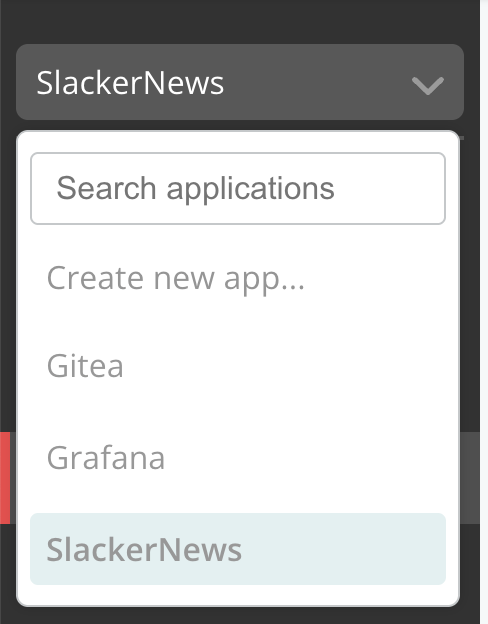
1. Under the application drop down, select the SlackerNews application that you created.
 [View a larger version of this image](/images/quick-start-app-dropdown-slackernews.png)
1. Click **Customers > Create customer**.
The **Create a new customer** page opens:

[View a larger version of this image](/images/create-customer.png)
1. For **Customer name**, enter a name for the customer. For example, `Example Customer`.
1. For **Assigned Channel**, select **Unstable**. This allows the customer to install releases promoted to the Unstable channel.
1. For **Customer type**, select **Development**.
1. For **Install types**, enable **Embedded Cluster (current generation product)**.
1. Click **Save Changes**.
### Create a CMX VM
:::note
If you are using your own VM, skip these steps and continue to [Create the ConfigValues](#create-the-configvalues) below.
:::
1. In the Vendor Portal, go to [**Compatibility Matrix**](https://vendor.replicated.com/compatibility-matrix).
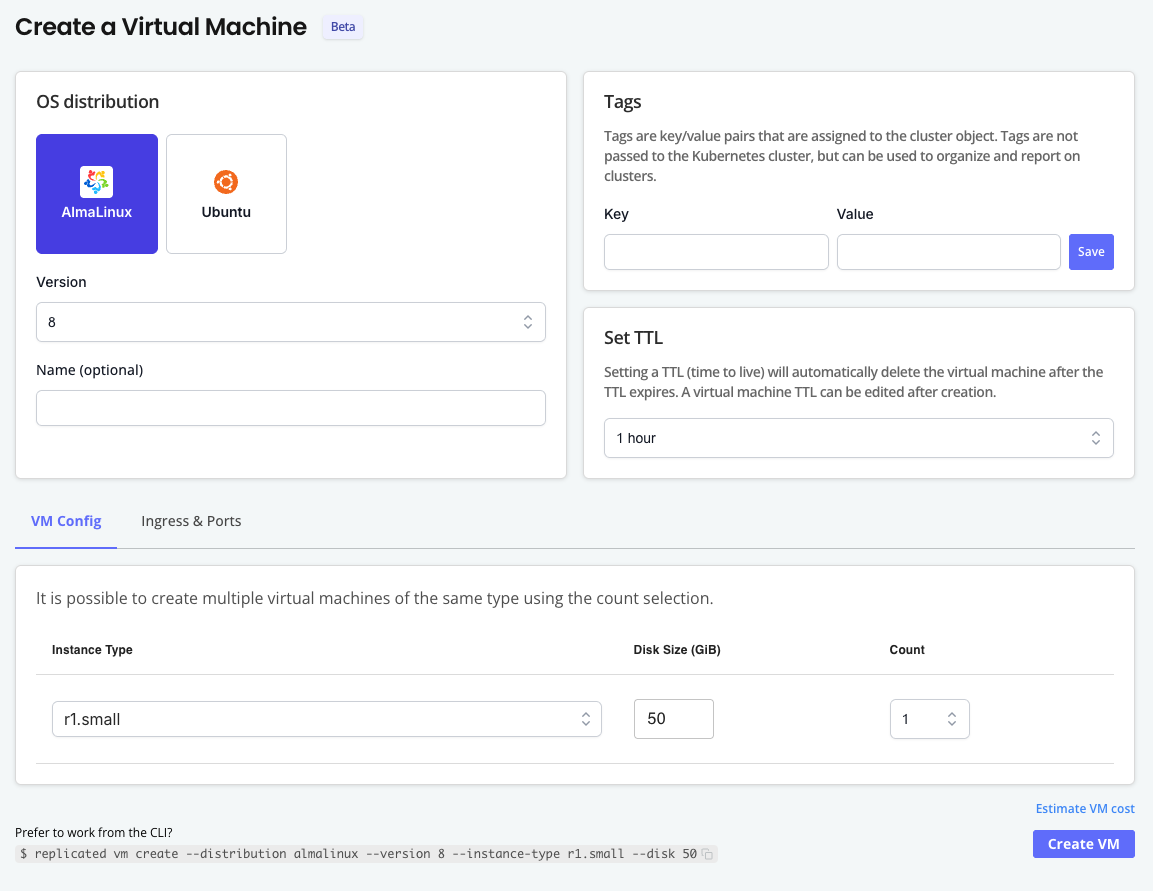
1. Click **Create > Create VM**.
[View a larger version of this image](/images/compatibility-matrix-create-vm.png)
1. On the **Create a Virtual Machine** page, complete the following fields:
* **OS distribution**: Ubuntu
* **Version**: 24.04
* (Optional) **TTL**: Optionally increase the TTL for the VM if you want more time to test the installation.
Leave the default values for the remaining fields.
1. Click **Create VM**.
1. Open the dot menu for the target VM and click **Edit VM**.

[View a larger version of this image](/images/compatibility-matrix-edit-vm.png)
1. Under **Ingress & Ports**, for **Add DNS record**, click **Add** to create a DNS record using the default settings. This will provide a hostname where you can optionally access the Admin Console after you install.
1. Add another DNS record with a **Target Port** of **443**. This will provide a hostname where you can access SlackerNews.
The following shows an example of both of these DNS records added to a VM:

[View a larger version of this image](/images/compatibility-matrix-dns-record.png)
1. Copy the URL for the DNS record with a target port of 443 (the hostname for accessing SlackerNews) and save it somewhere on your local machine. You will provide this hostname in the ConfigValues file that you create in the next step.
### Create the ConfigValues
1. On your local machine, create a ConfigValues file:
```bash
touch slackernews-configvalues.yaml
```
The [ConfigValues](/reference/custom-resource-configvalues) file allows you to set application-specific configuration values for SlackerNews from the command line rather than through the Admin Console UI. You will transfer this file to your VM and then pass it to the installation in a later step.
1. In `slackernews-configvalues.yaml`, add the following YAML:
```yaml
apiVersion: kots.io/v1beta1
kind: ConfigValues
spec:
values:
slackernews_domain:
value: YOUR_DOMAIN
```
Where `YOUR_DOMAIN` is the domain to use for SlackerNews. For CMX VMs, this is the hostname for the DNS record with port 443 that you copied in a previous step.
**Example:**
```yaml
apiVersion: kots.io/v1beta1
kind: ConfigValues
spec:
values:
slackernews_domain:
value: serene-jones.ingress.replicatedvm.com
```
### SSH onto the VM
* **If you brought your own VM:**
1. SSH onto the VM.
1. Transfer the `slackernews-configvalues.yaml` file from your local machine to the VM.
* **If you are using a CMX VM:**
1. In the Vendor Portal, go to [**Compatibility Matrix**](https://vendor.replicated.com/compatibility-matrix) and find the VM under the **Virtual Machines** provided.
1. Copy and run the SSH command provided.

[View a larger version of this image](/images/compatibility-matrix-ssh-command.png)
1. If you are prompted to add the fingerprint for replicatedvm.com, type `yes` and press Enter.
1. When prompted, provide the passphrase for the SSH key in your linked GitHub account. CMX uses GitHub SSH to provide access to the VM.
1. Open a new command prompt window.
1. In the new windows, get the SCP endpoint for the VM:
```bash
replicated vm scp-endpoint VM_ID
```
**Example output:**
```bash
scp://yourusername@37.27.52.178:43663
```
1. Transfer the ConfigValues file that you created to your VM using the SCP endpoint:
```bash
scp PATH_TO_CONFIGVALUES scp://GITHUB_USERNAME@SSH_ENDPOINT:PORT
```
Where:
* `PATH_TO_CONFIGVALUES` is the path to the ConfigValues file that you created on your local machine.
* `GITHUB_USERNAME`, `SSH_ENDPOINT`, and `PORT` are all copied from the SCP endpoint that you retrieved.
**Example:**
```bash
scp configvalues-slackernews.yaml scp://yourusername@37.27.52.178:43663
```
1. When prompted, type `yes` to connect to the host.
1. When prompted, type your passphrase for your SSH key and press Enter.
1. Return to your VM and confirm that the ConfigValues was transferred.
### Install
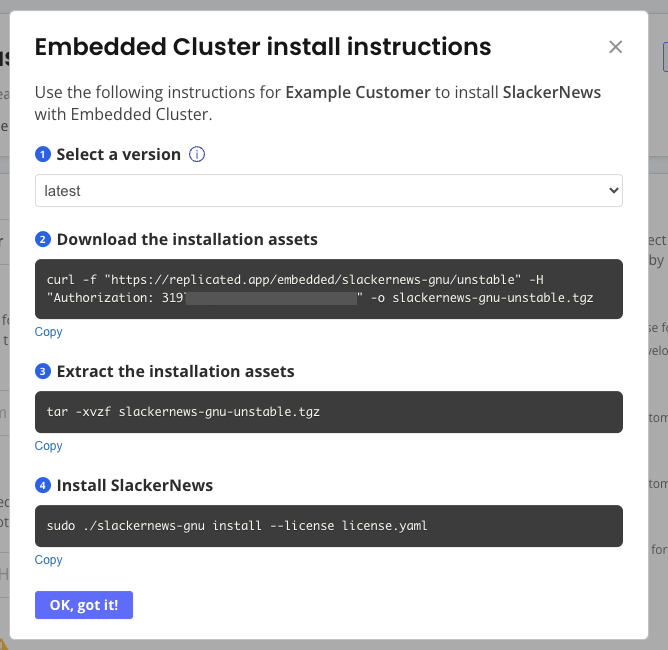
1. In the Vendor Portal, on the page for the customer that you created, click **Embedded Cluster install instructions**.

[View a larger version of this image](/images/quick-start-slackernews-customer-install-instructions-button.png)
1. On your VM, run the _first two commands_ in the **Embedded cluster install instructions** dialog to download the latest release and extract the installation assets.
Do not yet run the installation command.
[View a larger version of this image](/images/quick-start-app-dropdown-slackernews.png)
1. Click **Customers > Create customer**.
The **Create a new customer** page opens:

[View a larger version of this image](/images/create-customer.png)
1. For **Customer name**, enter a name for the customer. For example, `Example Customer`.
1. For **Assigned Channel**, select **Unstable**. This allows the customer to install releases promoted to the Unstable channel.
1. For **Customer type**, select **Development**.
1. For **Install types**, enable **Embedded Cluster (current generation product)**.
1. Click **Save Changes**.
### Create a CMX VM
:::note
If you are using your own VM, skip these steps and continue to [Create the ConfigValues](#create-the-configvalues) below.
:::
1. In the Vendor Portal, go to [**Compatibility Matrix**](https://vendor.replicated.com/compatibility-matrix).
1. Click **Create > Create VM**.

[View a larger version of this image](/images/compatibility-matrix-create-vm.png)
1. On the **Create a Virtual Machine** page, complete the following fields:
* **OS distribution**: Ubuntu
* **Version**: 24.04
* (Optional) **TTL**: Optionally increase the TTL for the VM if you want more time to test the installation.
Leave the default values for the remaining fields.
1. Click **Create VM**.
1. Open the dot menu for the target VM and click **Edit VM**.

[View a larger version of this image](/images/compatibility-matrix-edit-vm.png)
1. Under **Ingress & Ports**, for **Add DNS record**, click **Add** to create a DNS record using the default settings. This will provide a hostname where you can optionally access the Admin Console after you install.
1. Add another DNS record with a **Target Port** of **443**. This will provide a hostname where you can access SlackerNews.
The following shows an example of both of these DNS records added to a VM:

[View a larger version of this image](/images/compatibility-matrix-dns-record.png)
1. Copy the URL for the DNS record with a target port of 443 (the hostname for accessing SlackerNews) and save it somewhere on your local machine. You will provide this hostname in the ConfigValues file that you create in the next step.
### Create the ConfigValues
1. On your local machine, create a ConfigValues file:
```bash
touch slackernews-configvalues.yaml
```
The [ConfigValues](/reference/custom-resource-configvalues) file allows you to set application-specific configuration values for SlackerNews from the command line rather than through the Admin Console UI. You will transfer this file to your VM and then pass it to the installation in a later step.
1. In `slackernews-configvalues.yaml`, add the following YAML:
```yaml
apiVersion: kots.io/v1beta1
kind: ConfigValues
spec:
values:
slackernews_domain:
value: YOUR_DOMAIN
```
Where `YOUR_DOMAIN` is the domain to use for SlackerNews. For CMX VMs, this is the hostname for the DNS record with port 443 that you copied in a previous step.
**Example:**
```yaml
apiVersion: kots.io/v1beta1
kind: ConfigValues
spec:
values:
slackernews_domain:
value: serene-jones.ingress.replicatedvm.com
```
### SSH onto the VM
* **If you brought your own VM:**
1. SSH onto the VM.
1. Transfer the `slackernews-configvalues.yaml` file from your local machine to the VM.
* **If you are using a CMX VM:**
1. In the Vendor Portal, go to [**Compatibility Matrix**](https://vendor.replicated.com/compatibility-matrix) and find the VM under the **Virtual Machines** provided.
1. Copy and run the SSH command provided.

[View a larger version of this image](/images/compatibility-matrix-ssh-command.png)
1. If you are prompted to add the fingerprint for replicatedvm.com, type `yes` and press Enter.
1. When prompted, provide the passphrase for the SSH key in your linked GitHub account. CMX uses GitHub SSH to provide access to the VM.
1. Open a new command prompt window.
1. In the new windows, get the SCP endpoint for the VM:
```bash
replicated vm scp-endpoint VM_ID
```
**Example output:**
```bash
scp://yourusername@37.27.52.178:43663
```
1. Transfer the ConfigValues file that you created to your VM using the SCP endpoint:
```bash
scp PATH_TO_CONFIGVALUES scp://GITHUB_USERNAME@SSH_ENDPOINT:PORT
```
Where:
* `PATH_TO_CONFIGVALUES` is the path to the ConfigValues file that you created on your local machine.
* `GITHUB_USERNAME`, `SSH_ENDPOINT`, and `PORT` are all copied from the SCP endpoint that you retrieved.
**Example:**
```bash
scp configvalues-slackernews.yaml scp://yourusername@37.27.52.178:43663
```
1. When prompted, type `yes` to connect to the host.
1. When prompted, type your passphrase for your SSH key and press Enter.
1. Return to your VM and confirm that the ConfigValues was transferred.
### Install
1. In the Vendor Portal, on the page for the customer that you created, click **Embedded Cluster install instructions**.

[View a larger version of this image](/images/quick-start-slackernews-customer-install-instructions-button.png)
1. On your VM, run the _first two commands_ in the **Embedded cluster install instructions** dialog to download the latest release and extract the installation assets.
Do not yet run the installation command.
 [View a larger version of this image](/images/embedded-cluster-install-dialog-latest.png)
1. Copy the `install` command from the dialog. Then, add `--config-values` and `--admin-console-password` flags, as shown below:
```bash
sudo ./APP_SLUG install --license license.yaml \
--config-values PATH_TO_CONFIGVALUES \
--admin-console-password ADMIN_CONSOLE_PASSWORD
```
Where:
* `APP_SLUG` is the unique slug for the application.
* `PATH_TO_CONFIGVALUES` is the path to the `slackernews-configvalues.yaml` file on the VM.
* `ADMIN_CONSOLE_PASSWORD` is a password for accessing the Admin Console.
1. Run the command to install. The installation takes a few minutes.
1. After the installation command completes, open a shell so that you can interact with the cluster with the kubectl command line:
```
sudo ./APP_SLUG shell
```
1. Watch for the SlackerNews NGINX deployment to become available:
```bash
kubectl get deploy --namespace slackernews --watch
```
1. After the deployment is running, go to the domain for SlackerNews (the domain that you listed in the ConfigValues) to open the application and confirm that the installation was successful.
1. (Optional) Log in to the Admin Console using the password that you set with the `--admin-console-password` flag during installation:
* **CMX VMs:** The Admin Console domain is the hostname for the DNS record with port 30000 that you added to the VM. You can find this hostname by going to **Compatibility Matrix > Edit VM** in the Vendor Portal.
* **If you brought your own VM:** The Admin Console URL is provided in the output of the install command.
:::note
The IP address in the provided URL might be the private IP address of your VM. You might need to edit the URL to use the public IP address.
:::
1. Clean up the installation:
* If you created the VM with CMX, delete the VM:
```bash
replicated vm rm VM_ID
```
Where `VM_ID` is the ID of the VM. You can run `replicated vm ls` to get the ID.
* If you brought your own VM, use Embedded Cluster to reset and reboot the VM to remove the installation:
```bash
sudo ./APP_SLUG reset
```
Where `APP_SLUG` is the unique slug for the application. You can find the application slug by running `replicated app ls`.
## Summary
Congratulations! As part of this tutorial, you:
* Created a release with a Helm chart
* Created a ConfigValues file
* Performed a headless install of the release on a VM with Embedded Cluster
For more information about headless installs with Embedded Cluster, see [Automating Installation with Embedded Cluster](/enterprise/installing-embedded-automation).
[View a larger version of this image](/images/embedded-cluster-install-dialog-latest.png)
1. Copy the `install` command from the dialog. Then, add `--config-values` and `--admin-console-password` flags, as shown below:
```bash
sudo ./APP_SLUG install --license license.yaml \
--config-values PATH_TO_CONFIGVALUES \
--admin-console-password ADMIN_CONSOLE_PASSWORD
```
Where:
* `APP_SLUG` is the unique slug for the application.
* `PATH_TO_CONFIGVALUES` is the path to the `slackernews-configvalues.yaml` file on the VM.
* `ADMIN_CONSOLE_PASSWORD` is a password for accessing the Admin Console.
1. Run the command to install. The installation takes a few minutes.
1. After the installation command completes, open a shell so that you can interact with the cluster with the kubectl command line:
```
sudo ./APP_SLUG shell
```
1. Watch for the SlackerNews NGINX deployment to become available:
```bash
kubectl get deploy --namespace slackernews --watch
```
1. After the deployment is running, go to the domain for SlackerNews (the domain that you listed in the ConfigValues) to open the application and confirm that the installation was successful.
1. (Optional) Log in to the Admin Console using the password that you set with the `--admin-console-password` flag during installation:
* **CMX VMs:** The Admin Console domain is the hostname for the DNS record with port 30000 that you added to the VM. You can find this hostname by going to **Compatibility Matrix > Edit VM** in the Vendor Portal.
* **If you brought your own VM:** The Admin Console URL is provided in the output of the install command.
:::note
The IP address in the provided URL might be the private IP address of your VM. You might need to edit the URL to use the public IP address.
:::
1. Clean up the installation:
* If you created the VM with CMX, delete the VM:
```bash
replicated vm rm VM_ID
```
Where `VM_ID` is the ID of the VM. You can run `replicated vm ls` to get the ID.
* If you brought your own VM, use Embedded Cluster to reset and reboot the VM to remove the installation:
```bash
sudo ./APP_SLUG reset
```
Where `APP_SLUG` is the unique slug for the application. You can find the application slug by running `replicated app ls`.
## Summary
Congratulations! As part of this tutorial, you:
* Created a release with a Helm chart
* Created a ConfigValues file
* Performed a headless install of the release on a VM with Embedded Cluster
For more information about headless installs with Embedded Cluster, see [Automating Installation with Embedded Cluster](/enterprise/installing-embedded-automation).